
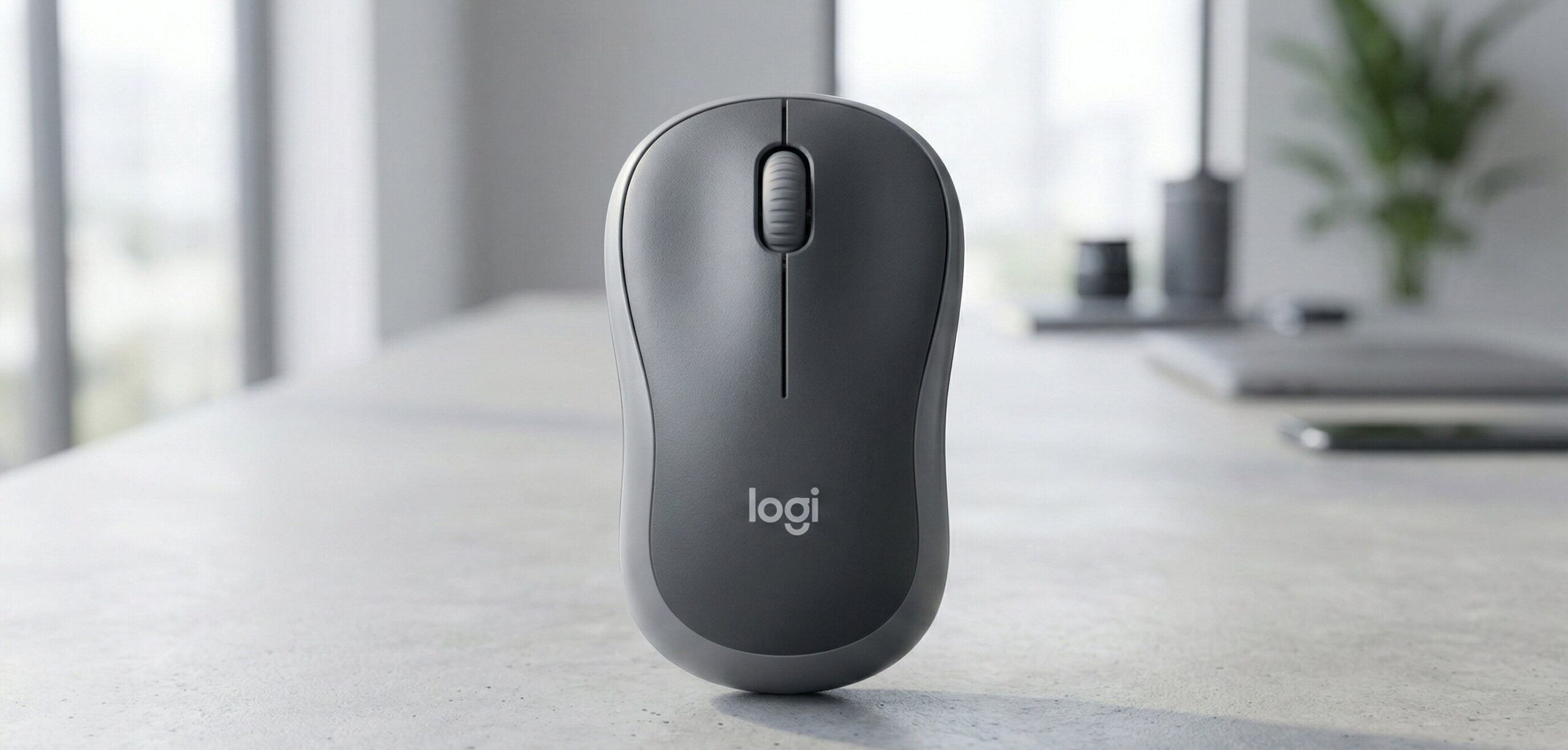
If you are searching for a reliable, budget-friendly upgrade to your daily desk setup, the logitech m185 wireless optical mouse is likely one of the first options you will come across. But let’s be honest about our daily workflow for a second before we dive into the specs. We have all suffered from what I like to call the “trackpad cramp.” You know the exact feeling. You are sitting at a coffee shop or hunched over your dining table, furiously swiping at a tiny, unresponsive laptop trackpad. You are trying to highlight a row on a spreadsheet or drag a file across your desktop, and your wrist starts screaming in protest.
As we spend more time building out the perfect ergonomic workspace, it is incredibly easy to get distracted by massive, expensive office chairs, dual-monitor setups, or high-end standing desks. But sometimes, the biggest relief comes from the smallest, most affordable changes. Upgrading your daily peripheral is one of those crucial changes that pays off immediately.
Today, we are looking at a true classic that has been quietly dominating Amazon’s best-seller lists for years. If you are looking for a cheap, immediate relief to wrist strain, this might be it. Let’s dive into why this specific model deserves a closer look for anyone wanting to improve their desk setup without breaking the bank.
This device doesn’t have flashy RGB lights, and it won’t win any futuristic design awards. But what it lacks in unnecessary flair, it makes up for in pure, bulletproof reliability. In this comprehensive review, we are going to tear down exactly what makes this budget-friendly device tick, how it feels in the hand over an eight-hour workday, and whether it deserves a spot in your laptop bag.
Why Upgrading From a Trackpad Matters
Before we get into the subjective feel of this specific device, we need to talk about why making the switch from a laptop trackpad is so vital for your physical health.
Relying solely on a laptop trackpad forces your hand and wrist into an unnatural, flat position for extended periods. This severely limits your range of motion and increases the tension in your forearm. Over time, this can lead to stiffness and discomfort. Furthermore, precision tasks simply take much longer on a trackpad. Getting a dedicated mouse allows your hand to rest in a more natural, curved posture, speeding up your workflow and saving your joints from unnecessary strain.
Features and Details Breakdown
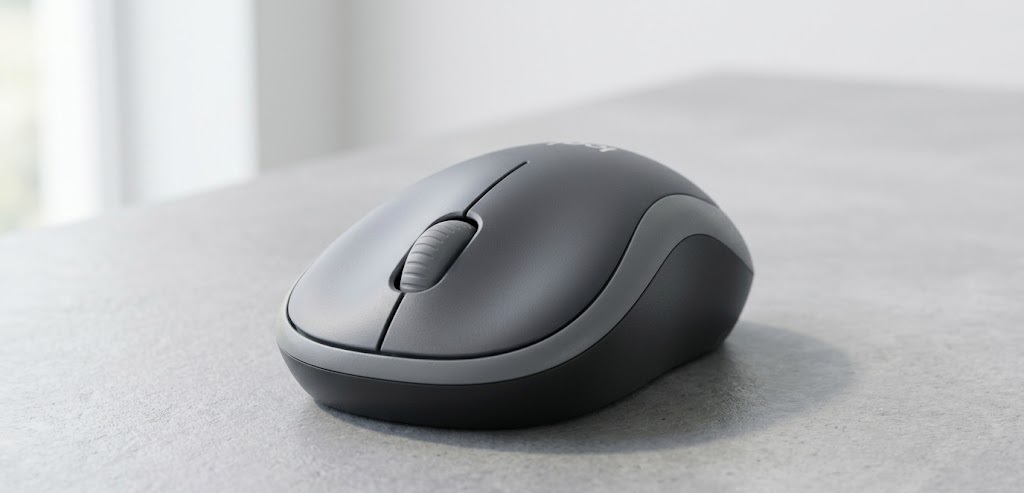
When evaluating any piece of office equipment, you need to look at the hard specifications to see how it will blend into your daily routine. Here is the complete technical breakdown of what is under the hood of the Logitech M185 wireless optical mouse.
| Feature / Detail | Specification |
|---|---|
| Brand & Model | Logitech M185 (Model: 910-002225) |
| Connectivity | USB 2.4GHz Wireless (via Nano Receiver) |
| Tracking Tech | Optical Tracking |
| Maximum Sensitivity | 1000 Dots per Inch (DPI) |
| Design Shape | Ambidextrous (Symmetrical for Left and Right hands) |
| Buttons | 3 (Left click, Right click, Line-by-line Scroll Wheel) |
| Battery Life | Up to 12 months (With smart sleep mode) |
| Power Source | 1 AA Battery (Included in the box) |
| Item Weight | Approx. 3.17 ounces (90 grams) |
| Dimensions | 3.86″ L x 2.38″ W x 1.5″ H |
| Wireless Range | Up to 33 feet / 10 meters |
| Compatibility | Windows, Mac OS X, Chrome OS, Linux |
| Eco-Friendly Build | Made with up to 77% post-consumer recycled plastic |
| Warranty | 3-year limited hardware warranty |
Pros and Cons: The Honest Truth
No product on the market is completely perfect, especially in the budget category. Here is my unfiltered take on what Logitech got right, and where this compact model falls a bit short.
The Pros:
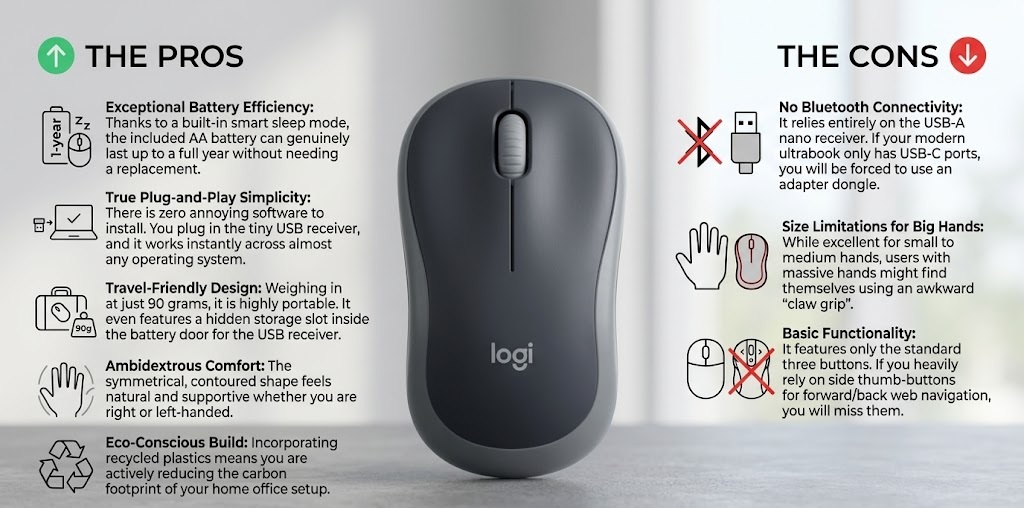
- Exceptional Battery Efficiency: Thanks to a built-in smart sleep mode, the included AA battery can genuinely last up to a full year without needing a replacement.
- True Plug-and-Play Simplicity: There is zero annoying software to install. You plug in the tiny USB receiver, and it works instantly across almost any operating system.
- Travel-Friendly Design: Weighing in at just 90 grams, it is highly portable. It even features a hidden storage slot inside the battery door for the USB receiver.
- Ambidextrous Comfort: The symmetrical, contoured shape feels natural and supportive whether you are right or left-handed.
- Eco-Conscious Build: Incorporating recycled plastics means you are actively reducing the carbon footprint of your home office setup.
The Cons:
- No Bluetooth Connectivity: It relies entirely on the USB-A nano receiver. If your modern ultrabook only has USB-C ports, you will be forced to use an adapter dongle.
- Size Limitations for Big Hands: While excellent for small to medium hands, users with massive hands might find themselves using an awkward “claw grip.”
- Basic Functionality: It features only the standard three buttons. If you heavily rely on side thumb-buttons for forward/back web navigation, you will miss them.
Deep Dive: Ergonomics and Hand Feel
When building a functional workspace, ergonomics is always the top priority. The shape of your mouse dictates the posture of your wrist, fingers, and forearm for your entire workday.
The chassis of the Logitech M185 wireless optical mouse is gently contoured. It isn’t aggressively slanted like heavily specialized vertical ergonomic mice, but it features subtle, smooth indents on the sides. This intelligent design allows your thumb and ring finger to naturally grip the plastic without having to squeeze tightly, reducing hand fatigue over long work sessions.
Because of its compact dimensions, it is an absolute dream for users with small to medium-sized hands. Full-sized gaming mice can often feel like dragging a heavy brick across your desk, forcing smaller hands to stretch uncomfortably to reach the click mechanisms. This compact profile eliminates that stretch entirely, allowing your fingers to rest naturally right over the switches.
Tracking and Performance on the Job
Let’s talk about day-to-day performance. This unit features a 1000 DPI optical sensor. But what does DPI actually mean for your work?
DPI (Dots Per Inch) measures how sensitive the cursor is to your physical hand movements. For standard office work—writing emails, editing documents, browsing the web, or managing an affiliate site—1000 DPI is the absolute perfect sweet spot. The cursor moves fast enough that you don’t have to sweep your entire arm across the desk, but it’s precise enough that you won’t accidentally overshoot text links.
The optical tracking technology uses an LED light to bounce off your desk surface, reading microscopic textures to translate movement. It performs flawlessly on mousepads, wood, laminate, and standard office desks. Just remember that it is a standard optical laser, so it will not track well on clear glass coffee tables.
Connectivity and Battery Life
We live in a world where everything requires pairing menus, account creation, and firmware updates. The connectivity of the Logitech M185 wireless optical mouse is handled entirely by a tiny USB Nano Receiver, completely bypassing those modern headaches.
You plug the receiver into a spare USB-A port on your computer, and the connection is established in roughly three seconds. Unlike Bluetooth, which can sometimes stutter, lag, or disconnect if your laptop goes to sleep, the 2.4GHz connection is incredibly stable. With a wireless range of up to 33 feet (10 meters), you can even use it from across the room.
Battery anxiety is also a thing of the past here. Powered by a single AA battery, it boasts a lifespan of up to 12 months. It achieves this using a smart sleep mode. The moment you stop moving the device, it enters a low-power state. It wakes up instantaneously the microsecond you touch it again. There is also a physical On/Off switch on the bottom, ensuring the battery won’t drain while bouncing around in your backpack.
Who Should Buy This Mouse?
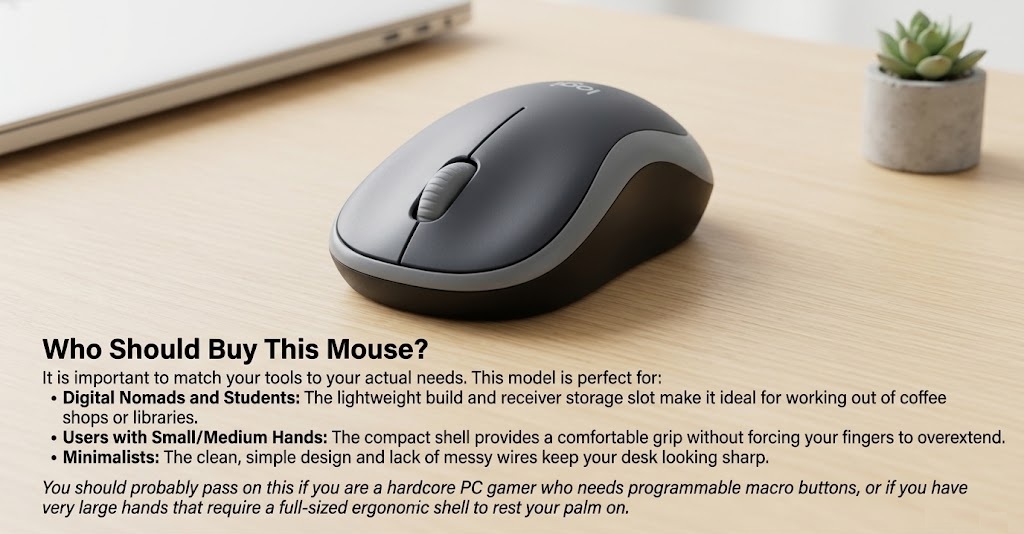
It is important to match your tools to your actual needs. This model is perfect for:
- Digital Nomads and Students: The lightweight build and receiver storage slot make it ideal for working out of coffee shops or libraries.
- Users with Small/Medium Hands: The compact shell provides a comfortable grip without forcing your fingers to overextend.
- Minimalists: The clean, simple design and lack of messy wires keep your desk looking sharp.
You should probably pass on this if you are a hardcore PC gamer who needs programmable macro buttons, or if you have very large hands that require a full-sized ergonomic shell to rest your palm on.
Frequently Asked Questions (FAQ)
To make this review as helpful as possible, let’s address some of the most common questions buyers have before picking one up.
Does it have Bluetooth? No, it does not. It operates strictly via the 2.4GHz wireless connection using the included USB nano receiver.
Will it work with my new MacBook? Yes, it is fully compatible with macOS. However, because modern MacBooks only feature USB-C ports, you will need to purchase a standard USB-C to USB-A adapter hub to plug in the receiver.
Can I use the Logitech M185 wireless optical mouse for PC gaming? It is perfectly fine for casual gaming, slow-paced strategy games, or life simulators. However, if you play fast-paced competitive shooters where split-second reaction times and high DPI customization are required, you should invest in a dedicated gaming mouse.
Is the click mechanism loud? It uses standard mechanical switches that provide a satisfying, tactile “click” sound. While it is not classified as a “silent” mouse, it is not overly disruptive. In a standard office environment, the sound blends right in.
The Final Verdict
Building a great ergonomic setup is a marathon, not a sprint. Sometimes, you don’t need a hundred-dollar peripheral to get the job done properly.
The reason the Logitech M185 wireless optical mouse remains a #1 best-seller year after year is because it completely nails the fundamentals. It strips away the gimmicks and delivers exactly what a computer user actually needs: a comfortable grip, pinpoint optical tracking, absurdly long battery life, and a wireless connection that never drops.
If you are still fighting with a trackpad, spending a few dollars on this compact powerhouse is one of the easiest ways to instantly upgrade your workflow. It is a reliable workhorse, ready to tackle whatever tasks your workday throws at it.
If you are looking to upgrade the rest of your workstation, your keyboard is the next logical step. Check out our tailored guides to find the perfect fit for your hands: Best Gaming Keyboards for Big Hands and Best Gaming Keyboards for Small Hands
1 thought on “Logitech M185 Wireless Optical Mouse Review: A Budget Setup Essential?”