
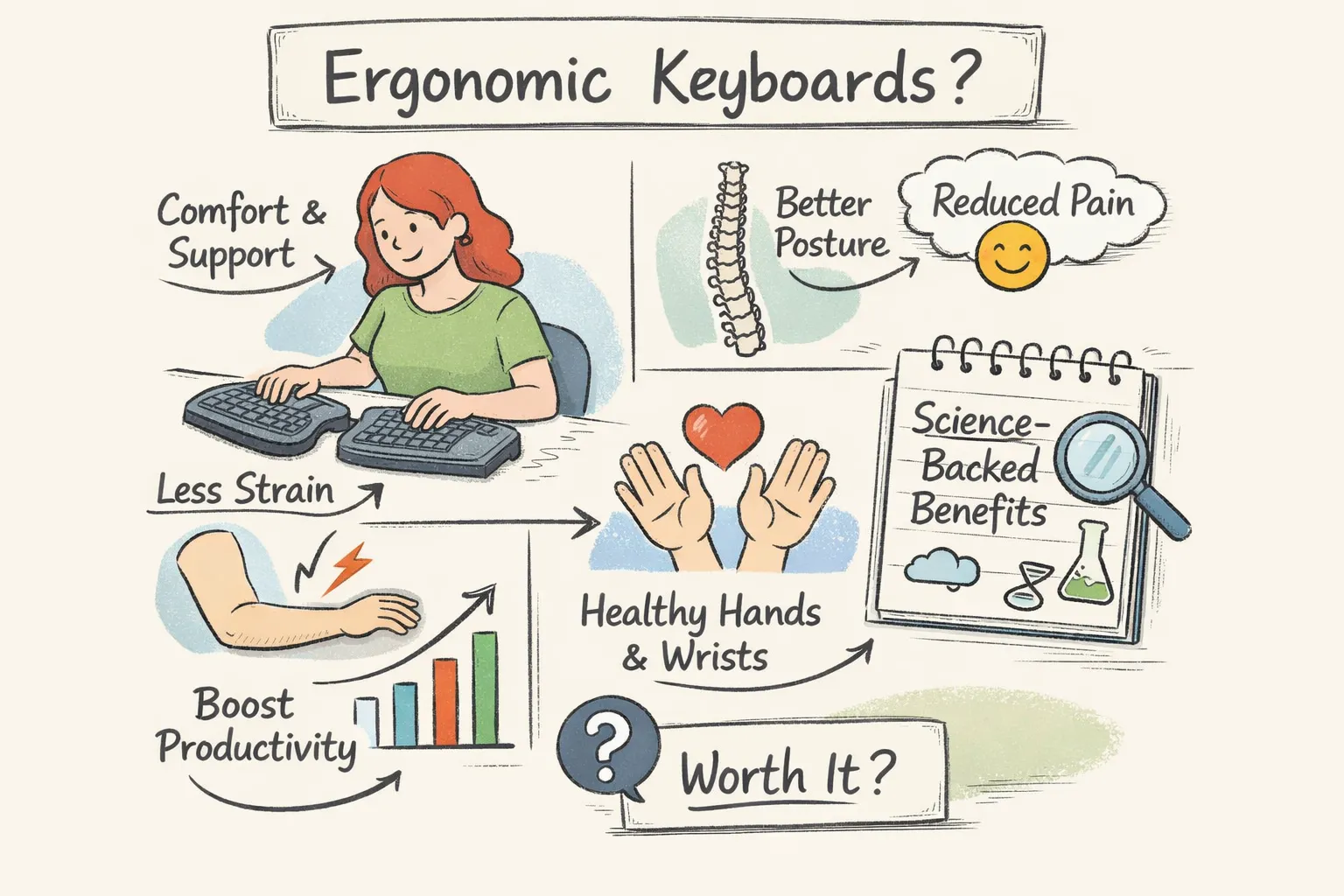
The research base is modest but consistent: few randomized clinical trials compare ergonomic and standard keyboards, so most evidence comes from biomechanical lab measurements, EMG trends, occupational guidance, and user reports. Ergonomic designs, such as split, tented, or vertical layouts, produce measurable posture improvements and likely comfort gains when paired with breaks, posture adjustments, and workload changes. OSHA and occupational therapists recommend combining those measures; below are seven science-backed benefits plus practical setup tips and buying advice that avoid overpromising results about are ergonomic keyboards better.
Quick summary
Here are the key, commonly observed effects that ergonomic keyboards produce in lab tests and user trials. Use these points to decide whether a switch is likely to help your setup.
- Reduced extreme wrist angles: ergonomic shapes cut wrist extension and forearm pronation, which lowers mechanical strain for many users.
- Lower muscle load: EMG and lab studies show reduced forearm and shoulder activation when users maintain a more neutral hand posture.
- Less ulnar deviation: split and columnar layouts let the hands track straight from the forearm, easing strain on the little-finger side.
- Improved endurance and comfort: neutral alignment tends to reduce perceived fatigue and the need for frequent compensatory breaks during long typing sessions.
- Reduced contact and tendon stress: negative front tilt, low-force switches, and appropriate palm support lower repetitive tendon loading and contact pressure risks.
- Practical trade-offs: plan on 1 to 3 weeks of adaptation with a temporary speed hit that usually recovers with consistent practice.
- Setup matters: combine an ergonomic keyboard with an adjustable tray, correct chair height, monitor at eye level, and regular breaks for best results.
Quick verdict: are ergonomic keyboards better?
Yes for many people, though not a universal solution. Ergonomic keyboards encourage a more neutral hand position and reduce extreme wrist extension, which helps people who type many hours, use laptops without a proper tray, or already have wrist pain. They can improve comfort and posture but do not replace workload changes, regular breaks, or targeted rehabilitation when a condition needs treatment. Expect one to three weeks of adaptation while muscles and motor patterns adjust.
How keyboard design changes wrist angles and muscle load
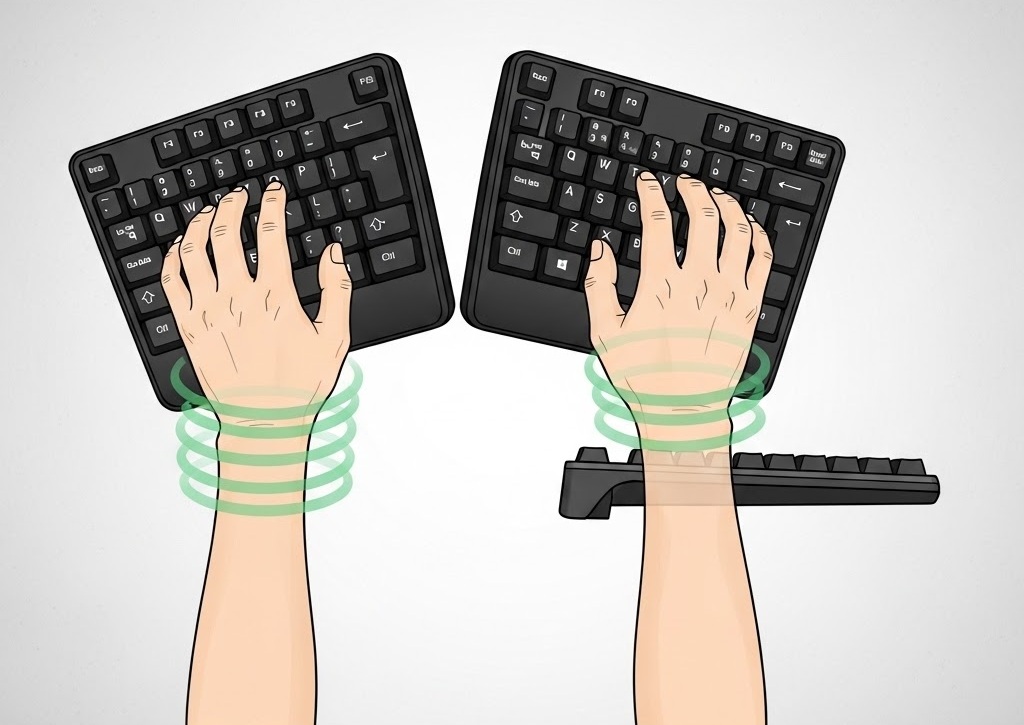
Keyboard geometry affects wrist angle and tendon load by changing how your hands approach the keys. Designs that lift the center or tip the keys outward, like tented or negative front tilt models, rotate the forearm so wrists sit closer to neutral. Reduced wrist extension lowers tension on the wrist extensors and can decrease pressure on the median nerve inside the carpal tunnel.
Check posture with a short video while you type: from the side the back of the hand should align roughly with the forearm instead of angling upward, and from above the palms should not be forced inward to avoid excess supination or pronation. Separating the halves and aligning keys in columns reduces ulnar deviation, the pinky-side bend common on standard layouts, so prefer adjustable split models to fine-tune separation and tenting. Hardware helps but does not eliminate the need for breaks, workload changes, and strengthening programs when symptoms persist.
How ergonomics changes muscle activation, pressure, and fatigue
EMG studies show that moving your hands into a more neutral alignment reduces forearm and shoulder muscle activation. Those measurable drops in muscle activity translate into less fatigue during long typing sessions, especially when posture is kept consistent. Neutral alignment lowers the continuous load your muscles carry and can reduce the frequency of compensatory pauses. For deeper technical background on EMG findings and ergonomic effects, see this review of ergonomic and EMG research studies on workplace interventions: EMG and ergonomics review.
Addressing shoulder tension requires more than a keyboard swap; a tented or split layout helps, but the biggest gains come when you pair the keyboard with a properly positioned tray and a well-adjusted chair. Treat the keyboard as one piece in a system — benefits are strongest when you optimize arm support, seat height, and shoulder posture together. Palm rests can support the hand during short pauses but increase contact pressure if you rest on them while actively typing, so prefer a soft rest for brief breaks and avoid pushing your wrists into a hard surface. Also choose a negative front tilt and lower-force switches to reduce tendon strain by keeping the wrist less extended and lowering peak finger force.
Typing speed, learning curve, and real-world trade-offs
Ergonomic changes often increase typing endurance and reduce perceived fatigue by removing extreme wrist and forearm angles that otherwise force you to stop. When hands sit in a neutral position, muscles activate more efficiently and you take fewer compensatory pauses, which supports longer comfortable sessions and higher sustained productivity for heavy typists.
Expect a short hit to efficiency: many users lose speed briefly and then regain or improve within one to three weeks of consistent use, and deliberate practice can shorten that timeline. To speed adaptation, practice daily with the new layout, avoid switching between keyboards during the learning period, and run weekly typing tests to track progress while you adjust tenting and separation until key reach feels natural. Outcomes vary with posture, workload, and keyboard fit, so use a short trial to evaluate real-world gains. If you’re interested in formal studies of keyboard interventions, you can review registered trials that investigate ergonomic changes and outcomes: clinical trials on ergonomic keyboards.
How to choose and test an ergonomic keyboard (what to look for)
A keyboard alone won’t prevent repetitive strain injuries; treat it as one part of a complete workstation plan. Combine an adjustable keyboard tray, a chair set so your feet are flat, monitor height at eye level, and scheduled microbreaks to create durable improvement. Follow basic occupational recommendations: center the keyboard in front of you, keep elbows near 90 degrees, and place the mouse at the same height to avoid awkward reaches. Prioritize the system first and the device second to get lasting gains. For practical workplace guidance that complements product choices, consult the official workstation ergonomics guidance: OSHA guidance on computer workstation ergonomics.
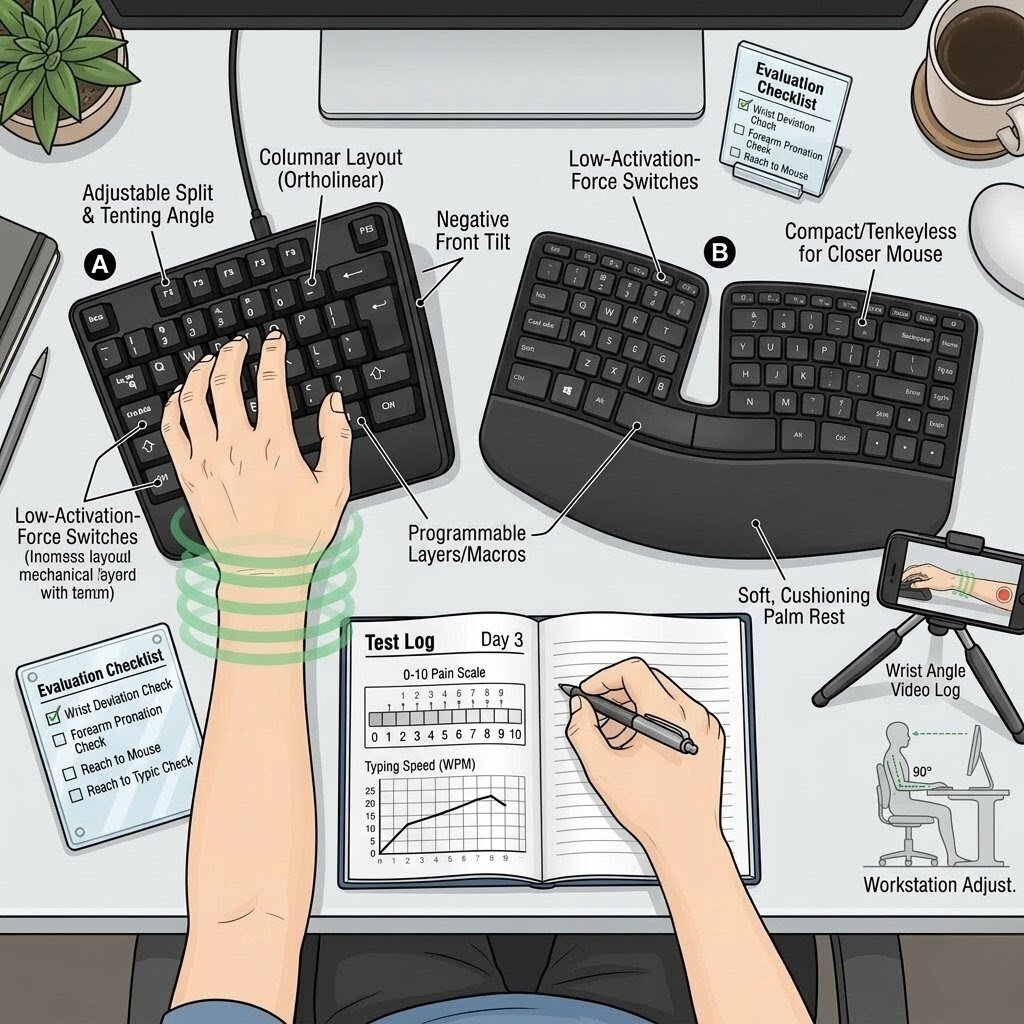
Use this checklist while shopping or testing in store or at home. Check the items below to see whether a model supports healthy hand posture and long-term comfort.
- Adjustable split and tenting angles, or a columnar layout to reduce pronation
- Negative front tilt or low-profile design to minimize wrist extension
- Low activation-force switches and comfortable travel
- Detachable numpad or compact layout so the mouse stays close
- Programmability for remaps and macros, plus a wired option for low latency
- Good palm-rest cushioning that supports but does not force contact during typing
Ergo Setup Lab recommendations to test include a range of split, tented, and low-profile designs for different budgets and user types. Pick models with generous trial windows so you can test them properly at your own desk. For a curated comparison of top models to try, see our roundup: 5 Best Ergonomic Keyboards for Typing Comfort & Wrist Pain (2026 Review).
- Microsoft Sculpt Ergonomic: accessible curved split layout with a cushioned palm rest for a gentle transition.
- Kinesis Freestyle and Advantage family: high adjustability with proven split and tenting options for serious typists.
- Logitech Ergo K860: lower learning curve and solid palm support for mixed office use.
Test a keyboard the right way by doing an exclusive trial of 7 to 21 days using only the new keyboard during normal work sessions. Measure wrist angle with a phone photo or short video while typing and compare to a neutral baseline, track pain or discomfort on a simple 0–10 scale, and log typing speed once a week. Make tray and chair adjustments separately so you can isolate what actually reduces fatigue. If you use a Mac, check platform-specific recommendations and Mac-friendly models in our guide: 4 Best Ergonomic Keyboard Mac Options in 2026 (Stop Wrist Pain).
Final thoughts on ergonomic keyboards
If you’re weighing a switch, the evidence is modest but consistent: design changes alter wrist angles, tendon load, and muscle activation in ways that reduce strain for many users. Key takeaways are clear — ergonomic geometry matters more than surface padding, expect gradual improvement rather than instant fixes, and match your keyboard to how you type and the tasks you do.
1 thought on “Are Ergonomic Keyboards Better? 7 Science-Backed Benefits”