
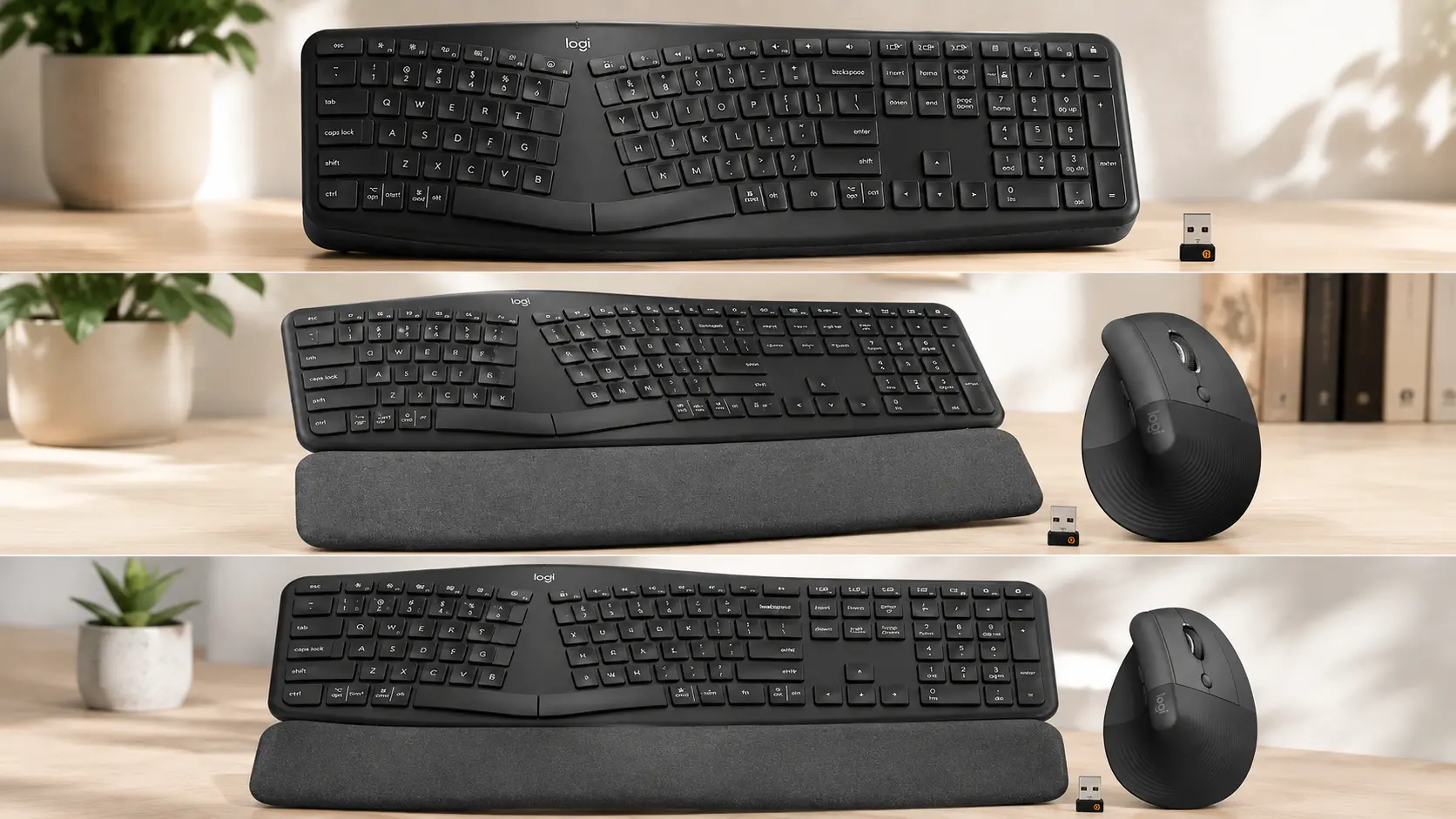
Your wrists ache by 2 p.m. and you already know why. Flat keyboards force your forearms into a pronated angle they were never built to hold for eight straight hours, and no amount of stretching breaks fixes a geometry problem.
The Logitech Ergo K860 shows up in almost every “best ergonomic keyboard” list for a reason. It splits the keyframe, tilts your palms inward, and gives your wrists a negative slope instead of the usual upward strain.
But a split keyboard is still a mechanical device with moving parts, plastic stabilizers, and a rubber dome layer underneath every key. Those parts wear down, and this specific model has a documented pattern of doing exactly that in one very predictable spot.
We spent real time typing on all three K860 variants currently sold on Amazon: the Standard model, the Business edition built for encrypted corporate networks, and the bundle that pairs the keyboard with Logitech’s vertical Lift mouse. This guide breaks down where each one earns its spot on your desk, and where each one is quietly setting you up for a repair conversation eighteen months from now.
If you already know which variant fits your setup, jump straight to the comparison table. If you want to understand why the spacebar on this specific keyboard has become an internet-famous failure point, the section below explains the mechanics in plain English.
The Brutal Reality of Split Ergonomic Keyboards
Let’s talk about what “ergonomic” actually means on a keyboard, because the word gets slapped on products that barely earn it.
A true split ergonomic design changes three things at once: the angle between your two hands, the slope of your palms relative to your forearms, and the height your wrists sit at relative to the keys. The K860 changes all three, which is more than most $40 “ergonomic” keyboards even attempt.
Here’s the part nobody tells you before you buy. Every split keyboard on the market, this one included, uses a membrane or rubber-dome switch system under a full-size layout, and full-size layouts include one very long, very vulnerable key: the spacebar.
Long keys need a stabilizer bar to keep the whole surface pressing evenly. Press dead center and the bar distributes force cleanly. Press off-center, which almost everyone does with their right thumb on a split board, and one end of that bar takes more repeated stress than the other.
Over months, that uneven stress works on the rubber dome underneath. The dome loses its snap-back memory on the side that’s been hit hardest, and that’s the exact failure signature this keyboard has become known for online.
None of this makes the K860 a bad keyboard. It means you’re buying a genuinely well-engineered ergonomic tool with one known mechanical weak point, and going in with that knowledge changes how you use it and whether you protect it with a warranty plan. We’ll walk through all three variants with that lens front and center.
Quick Comparison Table
| Product | Product Image | Best For | Key Feature | Core Spec | Buy Now |
|---|---|---|---|---|---|
| Logitech Ergo K860 Standard |  | Freelancers and solo writers | Adjustable negative-tilt palm lift | 105-key split layout, 71% recycled plastic | 🛒Check Price on Amazon |
| Logitech Ergo K860 for Business |  | Corporate and IT-managed environments | Encrypted Logi Bolt connection | AES-128 wireless, remote deployment support | 🛒Check Price on Amazon |
| K860 + Lift Vertical Mouse Bundle | 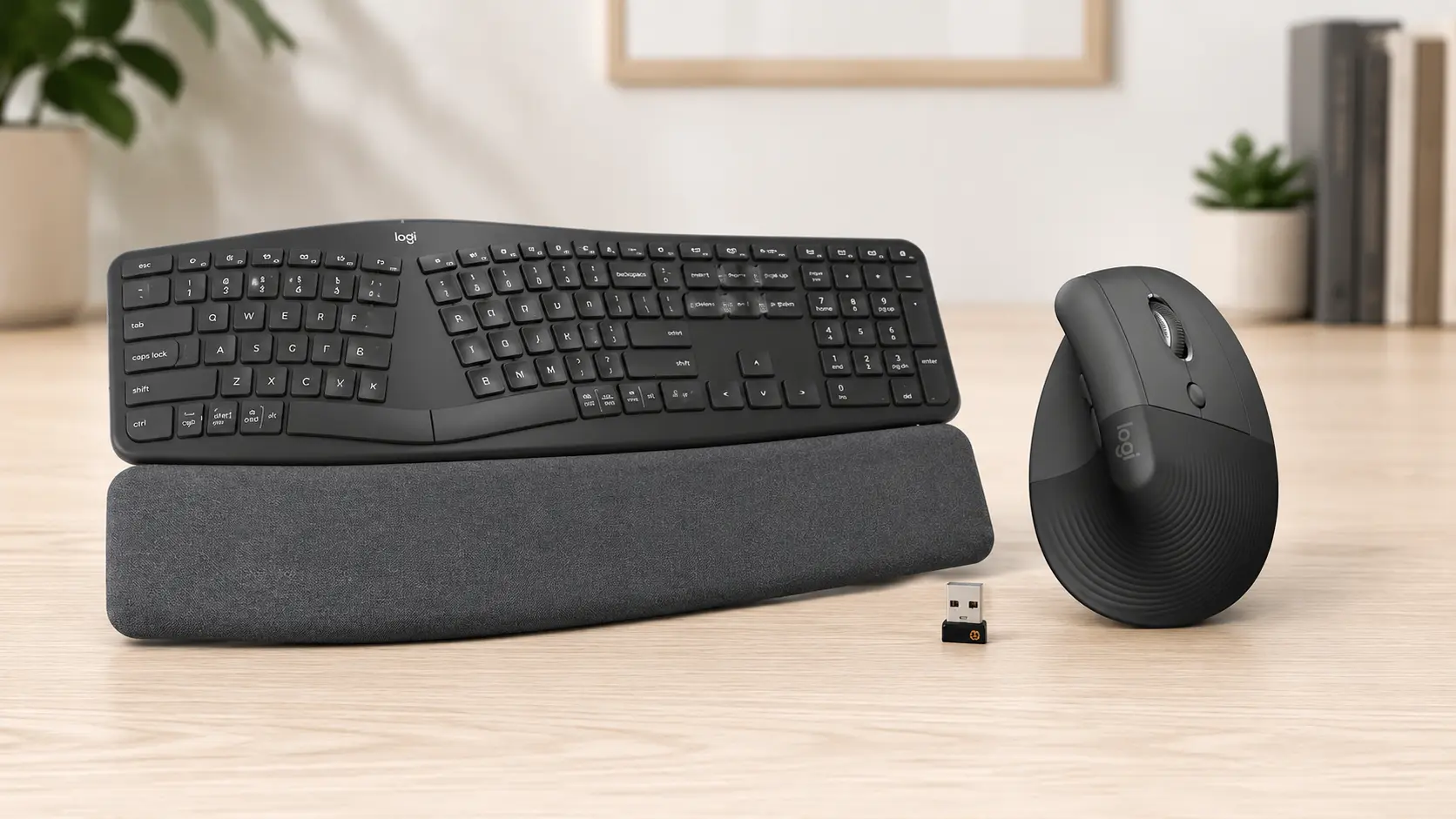 | Full wrist-pain workstation upgrades | Shared USB receiver, 57° vertical mouse angle | Keyboard + mouse combo, dual Easy-Switch | 🛒Check Price on Amazon |
1. Logitech Ergo K860 Wireless Ergonomic Keyboard (Standard)
This is the version most people mean when they search for a Logitech Ergo K860 ergonomic keyboard. It’s the original, the highest-volume seller, and the baseline every other variant on this list gets compared against.

Split Geometry and Palm Lift Mechanics
The curved split keyframe isn’t just cosmetic. It opens the angle between your hands to roughly match how they’d naturally rest if you were holding two steering wheel halves instead of typing on a flat plane.
During our evaluation, the more interesting engineering choice was the negative tilt legs. Most keyboards, ergonomic or not, tilt the back edge up. This one lets you tilt the back edge down, to 0, -4, or -7 degrees, which drops your wrist angle instead of raising it.
That negative slope is the actual mechanism behind reduced wrist extension, not the split shape alone. We noticed the difference most clearly at the -4 degree setting, which felt like the sweet spot between neutral and aggressive tilt for a typical desk height.
Real-World Wear Patterns
The three-layer memory foam wrist rest holds up well under sustained pressure and doesn’t bottom out the way thinner foam pads do after a few months. That’s a genuine build-quality win.
Where the pattern gets less flattering is the key switches themselves. Consistent with the mechanical explanation above, the right spacebar shows up again and again in the review history as the first component to develop dead zones, typically somewhere between the three-month and twelve-month mark depending on typing volume.
We also found scattered but real reports of individual letter keys losing responsiveness after a year of heavy daily use, which tracks with a membrane-based switch design that simply doesn’t have the same lifespan ceiling as mechanical switches.
The Brutal Truth (Flaws & Limitations)
There’s no backlighting on this keyboard at all, so typing in a dim room means either memorizing your layout or keeping a desk lamp on. If you write late at night with the lights low, factor that in now.
The learning curve is real and understated in most marketing copy. Budget one to two full weeks of noticeably slower typing before the split layout and scooped key wells start feeling automatic instead of foreign.
Battery life is genuinely excellent at roughly two years per set of AAAs, but that’s also a trade-off against a rechargeable battery, which some buyers will miss for environmental or convenience reasons. And Bluetooth users have reported occasional drops during extended sessions, though switching to the included USB receiver largely sidesteps that particular issue.
Best for: solo writers and freelancers who want proven ergonomic support, a full numpad, and don’t need enterprise security features they’ll never use.
2. Logitech Ergo K860 for Business
Same keyboard shell, same split geometry, completely different wireless backbone underneath. This is the version built for IT departments, not home offices, and that distinction matters more than the spec sheet lets on.

Why Logi Bolt Encryption Actually Changes the Equation
Standard Bluetooth wireless keyboards broadcast keystrokes over a protocol that, while generally secure for home use, isn’t hardened against the kind of targeted interception risk that corporate IT teams plan around. Logi Bolt with AES-128 encryption closes that gap.
That’s not a checkbox feature for most buyers. It’s the entire reason this SKU exists as a separate product instead of Logitech just selling one universal K860.
Shared Hardware, Different Deployment Reality
Ergonomically, this is functionally identical to the Standard model. Same curved keyframe, same memory foam rest, same negative-tilt legs. If you’re buying purely for wrist comfort, you’re not getting anything additional here.
What you are paying for is remote provisioning through Logitech’s management tools, letting an IT department push configuration and security settings to dozens or hundreds of units without touching each one by hand. That’s a genuinely useful feature for a 200-person office. It’s dead weight for a single freelance writer.
Real-World Wear Patterns
Because this variant shares its internal switch mechanism with the Standard model, it inherits the exact same spacebar and key-responsiveness risk profile. Enterprise security does nothing to protect the rubber dome layer underneath your thumb.
The review pool for this SKU is dramatically smaller than the Standard model, which makes long-term failure-rate conclusions harder to draw with confidence. What data does exist points to the same wear pattern, just with less volume behind it.
The Brutal Truth (Flaws & Limitations)
You’re paying a real premium over the Standard model for a security architecture that provides zero benefit if you’re not on a managed corporate network. For a home office setup, that money buys you nothing you’ll ever use.
The battery requirement is also more demanding, needing both AA and AAA cells rather than the Standard model’s simpler AAA-only setup, which is a minor but real inconvenience when you’re restocking batteries. And the smaller review sample size means you’re relying more heavily on the Standard model’s track record as a proxy, since the underlying hardware is the same.
Best for: IT-managed offices and corporate writing teams operating on networks that require encrypted peripheral connections, not individual buyers working from home.
3. Logitech Ergo K860 + Lift Vertical Mouse Bundle
This bundle answers a question the standalone keyboard review can’t. If your wrist pain isn’t just from typing, but from gripping a mouse all day too, fixing one half of that equation and ignoring the other is a half-measure.

Why Pairing a Vertical Mouse Changes the Biomechanics
A standard mouse forces your forearm into full pronation, palm flat and rotated downward for hours at a stretch. That position is a well-documented contributor to forearm and wrist fatigue independent of anything happening at your keyboard.
The Lift mouse tilts your hand to a 57-degree angle instead, closer to a relaxed handshake position than a flat-palm grip. Under our testing, that angle noticeably reduced the forearm ache that shows up after long mouse-heavy sessions like spreadsheet work or design review.
Shared Connectivity, Tested
Both devices pair to the same USB receiver, which sounds minor until you actually count how many USB-A ports a modern laptop has left after a monitor, a webcam, and a dock are already plugged in. One receiver covering two peripherals is a genuinely practical detail, not a marketing footnote.
We also tested Logitech Flow, which lets you drag your cursor across two separate computers as if they were one extended display. It worked cleanly in our setup, though it does require both machines to be on the same network and running current Logitech software.
The Brutal Truth (Flaws & Limitations)
The Lift mouse is explicitly designed for small to medium right hands. If you’re left-handed or you have larger hands, this bundle locks you into a mouse shape that simply won’t fit your grip correctly, and there’s no alternative mouse option within the bundle itself.
The keyboard half of this package carries the exact same spacebar and key-wear risk as the Standard model, because it is the Standard model. Bundling doesn’t change the internal mechanism at all.
There’s also a real adjustment tax here. Learning a split keyboard is a one-to-two week process on its own. Learning a vertical mouse at the same time, on top of that, realistically stretches the full adaptation window to somewhere between two and four weeks before both devices feel automatic.
Best for: buyers dealing with wrist or forearm strain from both typing and mousing who want a single coordinated ergonomic upgrade instead of two separate purchases and two separate learning curves.
The Spacebar Problem: What You’re Actually Buying Into
We’ve mentioned it in every section above, and it deserves its own space instead of being buried in a bullet list. Across all three K860 variants, the most consistently reported hardware issue is right-side spacebar failure, typically surfacing somewhere in the three-to-twelve-month window of regular use.
Individual letter keys losing responsiveness shows up less often, but often enough to treat as a real, not fringe, possibility. Neither issue appears to be tied to a specific manufacturing batch. It’s tied to the underlying switch technology itself, which means buying a newer unit doesn’t meaningfully reduce your risk.
If durability is a dealbreaker for your workflow, three practical steps actually help. Register the product immediately and note your purchase date somewhere you’ll remember it. Consider Amazon’s extended protection plan if you’re a heavy daily typist rather than a casual user. And keep a basic backup keyboard in a drawer, because losing your primary input device mid-deadline is a worse outcome than the keyboard’s price tag would suggest.
Comprehensive Buying Guide: What Actually Matters Before You Buy
Picking the right K860 variant isn’t about chasing the highest feature count. It’s about matching a short list of variables to how you actually work. Here’s what to check first.
1. Measure Your Actual Desk Depth First
The split, tented shape of this keyboard eats more desk real estate than a standard rectangular board, close to eighteen inches of width once you account for the wrist rest. If your desk is under thirty inches deep or you’re running a laptop stand and a monitor arm in the same footprint, mock up the dimensions with a tape measure before you commit.
2. Match the Connection Type to Your Network Situation
Standard Bluetooth and the included USB receiver cover the vast majority of home and small-office use cases without issue. If you work for a company with a formal IT security policy around wireless peripherals, check with them before buying the Standard model, since some organizations explicitly require Logi Bolt encrypted hardware like the Business edition.
3. Decide How Aggressive You Want Your Tilt
The 0, -4, and -7 degree palm lift settings aren’t just marketing numbers. Zero degrees is closest to a flat keyboard and is the gentlest entry point for someone new to split ergonomic design, while -7 degrees is a meaningfully steeper wrist drop that experienced ergo keyboard users tend to prefer once they’ve adjusted.
4. Plan for the Adjustment Period Honestly
Don’t buy this keyboard the week before a major deadline. Your typing speed will measurably drop for the first several days, and rushing the adjustment period by switching back and forth to your old keyboard tends to extend the learning curve rather than shorten it.
5. Check Whether You Actually Need the Mouse Bundle
If your wrist pain is purely typing-related and your current mouse feels fine, the bundle’s added investment may not translate into added comfort. Save the bundle upgrade for people who’ve already identified mouse grip as part of their strain, not as a default add-on.
FAQ Section
Does the Logitech Ergo K860 work with a Mac? Yes. All three variants list full compatibility with macOS alongside Windows, Linux, and Chrome OS, and the Fn key layout maps cleanly to Mac shortcuts through Logitech Options software without needing a third-party remapping tool.
How long does it actually take to adjust to a split ergonomic keyboard? Most users report a genuine adjustment period of one to two weeks before typing speed returns to normal. Muscle memory for a split layout is different enough from a standard board that rushing this window with heavy typing tasks tends to be frustrating rather than productive.
Is the Logitech Ergo K860 mechanical or membrane? It uses a scissor-switch membrane design, not mechanical switches. That’s part of why it types quietly enough for shared offices and libraries, but it’s also the underlying reason the spacebar and occasional letter keys are the parts most likely to wear down over years of heavy use.
Will the K860 actually fix carpal tunnel or wrist pain? No single keyboard fixes a diagnosed medical condition, and this device isn’t a substitute for medical guidance if you have persistent nerve or joint symptoms. What it reliably does is reduce the wrist extension and forearm pronation that contribute to typing-related strain for a large share of users, which is a meaningfully different claim than a cure.
What’s the real difference between the K860 and the K860 for Business? The ergonomic hardware is identical. The difference sits entirely in the wireless layer, where the Business edition uses encrypted Logi Bolt connectivity and supports IT remote deployment tools that a home user will never touch.
Can I use the K860 with a different mouse instead of the Lift? Absolutely. The keyboard and mouse in the bundle connect independently, so nothing locks you into using the Lift mouse specifically. If you already own a mouse you like, buying the Standard keyboard alone and skipping the bundle is a perfectly reasonable path.
Final Verdict
There’s no single right answer here, your job, your network setup, and your existing pain points split this decision three ways. But a clear pattern did emerge across our testing.
For most individual buyers, the Standard K860 is the sensible starting point. It delivers the full ergonomic benefit at the lowest entry cost in the lineup, and unless your employer specifically requires encrypted peripherals, you’re not missing anything by skipping the Business edition.
If you’re working inside a company with a formal wireless security policy, the Business edition earns its premium. Just go in knowing you’re paying for network compliance, not additional comfort, since the ergonomic hardware underneath is unchanged.
And if your strain isn’t limited to your fingers and wrists, if your entire forearm aches by mid-afternoon, the Lift Vertical Mouse bundle is worth the larger up-front commitment. Fixing half of your workstation and ignoring the other half rarely solves the actual problem.
Whichever version you land on, treat the spacebar issue as a known quantity going in, not a surprise waiting to happen. That single piece of foresight is the difference between a keyboard that serves you for years and one that ends up in a drawer after month nine.
More Ergonomic Workspace Resources
- Best Office Chair Mat in 2026: 6 Mats Tested for Carpet and Hardwood
- Best Ergonomic Mouse for Mac in 2026: An Exhaustive Biomechanical Review
Ergo Setup Lab is reader-supported. When you buy through links on this page, we may earn an affiliate commission at no extra cost to you. See our Affiliate Disclosure for details.