

If your wrist starts talking to you by 3 p.m., you already know the culprit. It’s not the work itself. It’s the flat, unbending keyboard your Mac shipped with, forcing your hands into the same twisted angle for eight hours straight.
For a lot of Mac users, the pain shows up gradually. A little tightness in the forearm after a long Slack thread. Then a dull ache that lingers into the evening. Then you’re shaking out your hands between emails just to keep typing.
We get it, and we also get that most people searching for an ergonomic keyboard mac setup aren’t trying to build a home lab of ergonomic gear just to test a theory. You want something that actually takes pressure off your wrists, works with macOS out of the box, and doesn’t require you to relearn how to type from scratch.
So that’s what this guide does. We pulled six keyboards currently sold on Amazon that specifically target Mac users looking for genuine ergonomic relief, then looked past the marketing copy at the actual mechanics. How the split or curve changes your hand angle. What the key travel does to finger fatigue. Where Mac compatibility is native, and where it’s an afterthought bolted onto a Windows-first product.
One honest note before we start. No keyboard, no matter how well engineered, cures carpal tunnel syndrome or tendinitis. What a genuinely well-designed ergo keyboard for mac can do is reduce the mechanical strain your hands absorb during a typing-heavy day. If your pain is severe, worsening, or comes with numbness that doesn’t fade after you step away from the desk, that’s a conversation for a hand specialist or occupational therapist, not a shopping guide.
Setting Real Expectations for an Ergonomic Keyboard on Mac
Let’s clear something up first. The word “ergonomic” gets stamped on packaging that hasn’t earned it, and Mac users get a worse deal than most, because plenty of split keyboards are engineered for Windows first and treat macOS compatibility as an afterthought.
Every keyboard on this list is built from the same core components. A frame that houses the switches, a key mechanism that does the actual typing, and some kind of geometry change, split, curve, or tenting, meant to bring your wrists closer to a neutral position. What separates a keyboard that genuinely helps from one that just photographs well comes down to three mechanical factors.
How much the split or curve actually reduces wrist pronation, the inward twisting motion that causes most of the damage. How the key switch type, chiclet, scissor, or mechanical, affects finger fatigue over an eight-hour shift. And whether Mac compatibility is native, meaning Command, Option, and Control sit where your muscle memory expects them, or whether you’re stuck remapping keys just to get a usable layout.
None of these six keyboards are magic. A gently curved keyframe helps a little, but it’s a completely different category of engineering than a keyboard where you can physically separate the two halves and rotate each one independently. That distinction matters more than most Amazon listings let on, and we’ll flag it model by model.
Frame material matters too, and it’s rarely mentioned. Most ergonomic keyboards in this price range use molded plastic chassis, which keeps weight down but flexes slightly under firm typing pressure compared to the aluminum unibody construction Apple uses in its own keyboards. That flex isn’t a dealbreaker. It’s just a real trade-off between cost, weight, and rigidity that you should know about before you buy.
One more honest note. Terms like “reduces wrist strain by 25 percent” or “clinically tested” show up across this category constantly, and independent, peer-reviewed verification behind those specific numbers is rare to nonexistent in public data. Treat that language as a description of engineering intent, not a guaranteed medical outcome. We’ll call it out directly where it matters.
Quick Comparison Table
| Product | Product Image | Best For | Key Feature | Core Spec | Check Price |
|---|---|---|---|---|---|
| Logitech Ergo K860 | 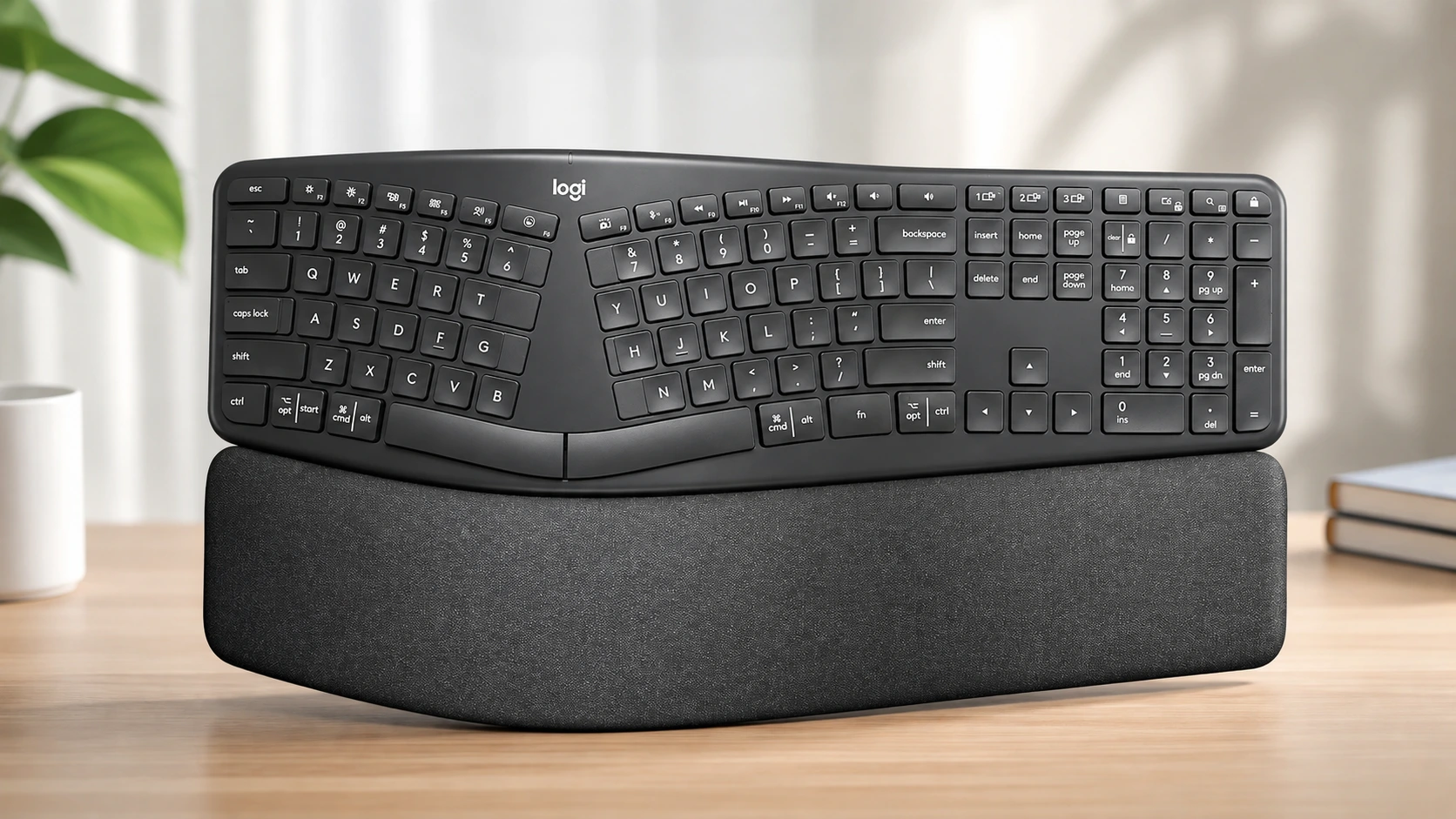 | Wrist strain reduction, best all-around pick | Curved split keyframe with integrated memory foam rest | Fixed 7″ split, 8° tilt, dual Bluetooth/USB | 🛒Check Price on Amazon |
| Kinesis Freestyle2 Blue for Mac | 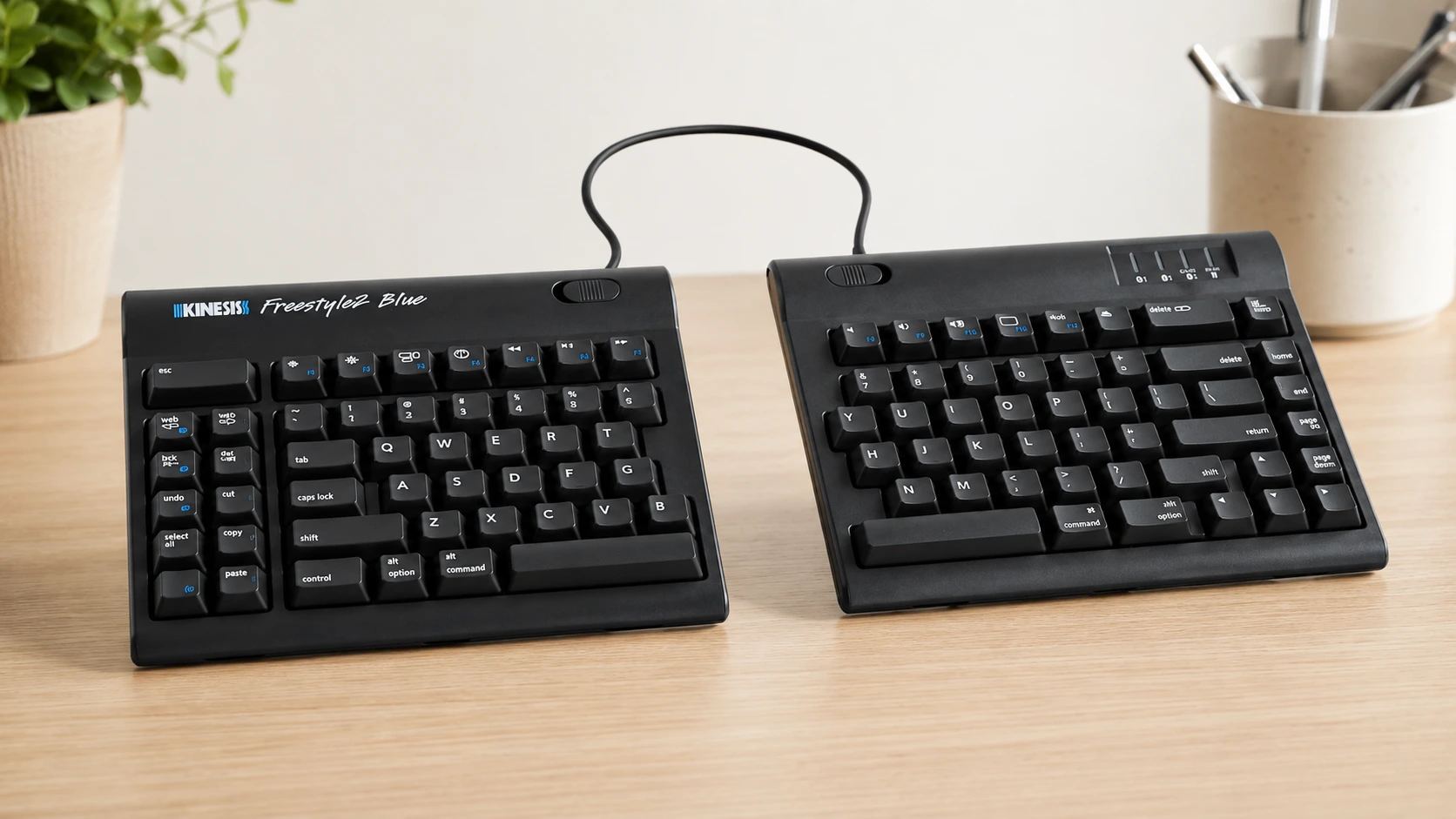 | Severe wrist pain, custom hand width | True 0″–9″ adjustable separation | Mac-native hotkeys, 2mm mechanical travel | 🛒Check Price on Amazon |
| Kinesis Freestyle2 + VIP3 Lifters | 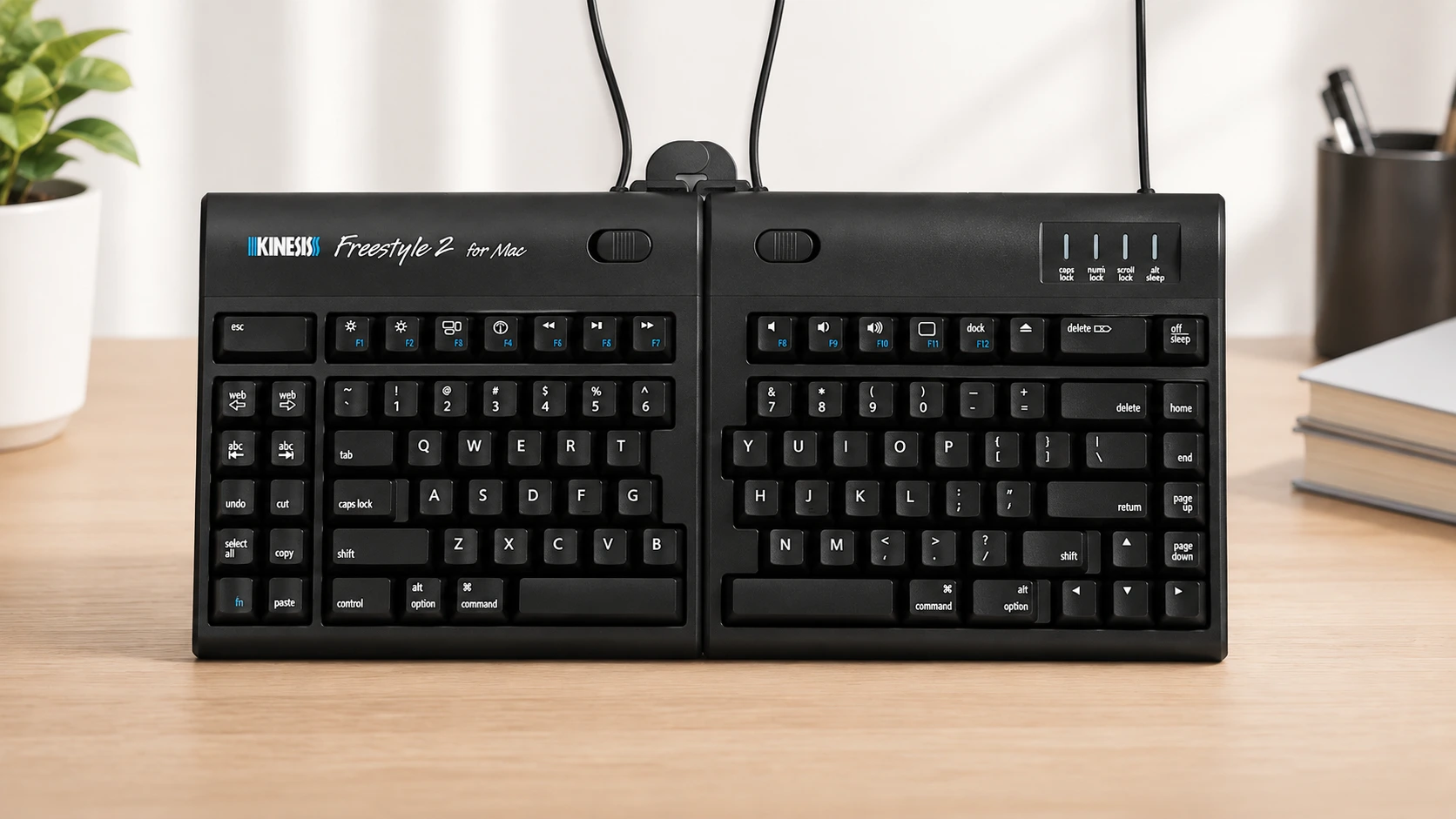 | Professional ergonomic workstation setup | Adjustable separation plus 5°/10°/15° tenting | Pre-installed lifters, 0″–9″ split range | 🛒Check Price on Amazon |
| Logitech Wave Keys for Mac | 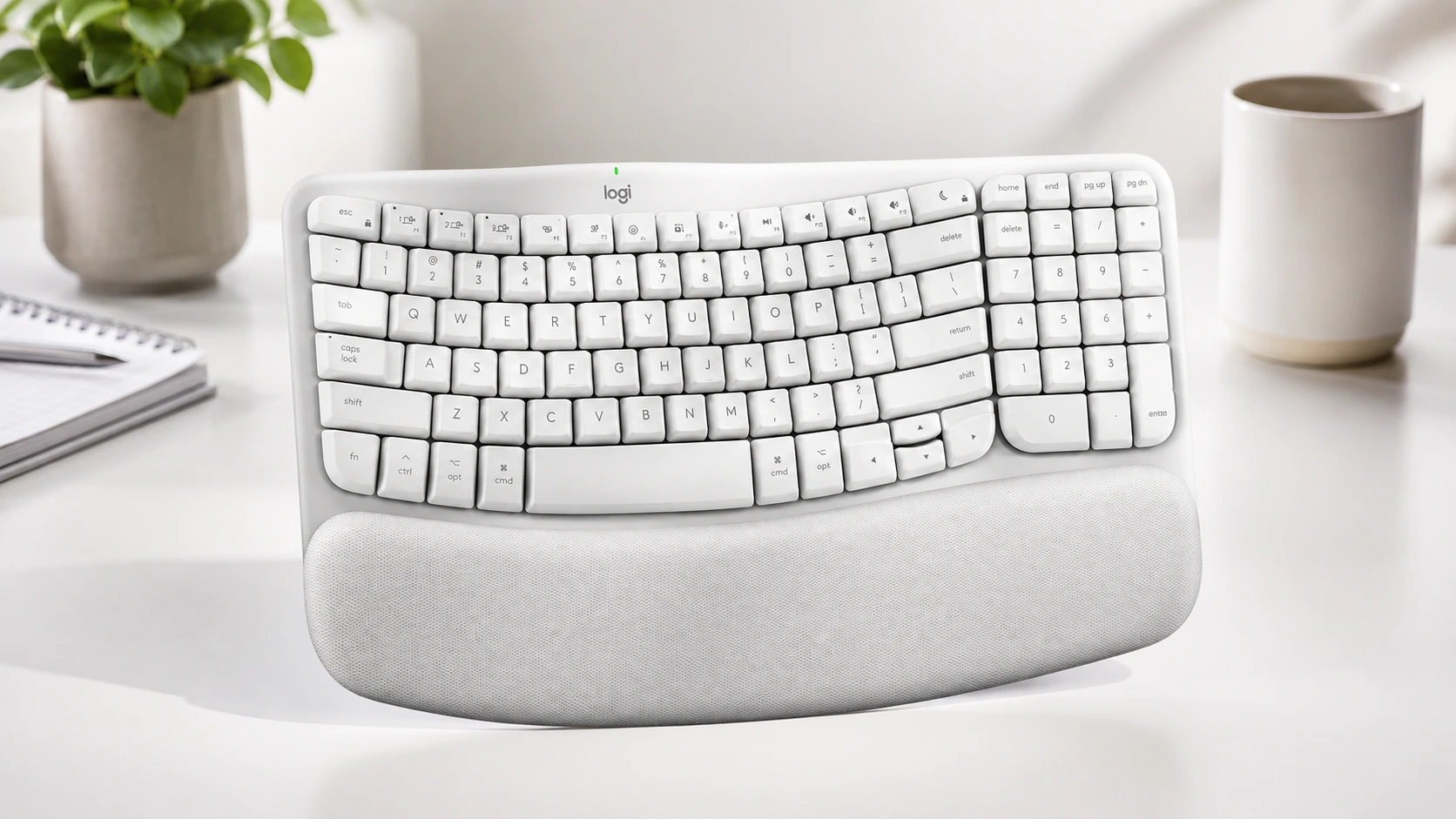 | Budget-conscious Mac users, iPad/iPhone switching | Easy-Switch across 3 Apple devices | Curved wave design, 6° tilt, memory foam palm rest | 🛒Check Price on Amazon |
| Logitech MX Keys S Combo | 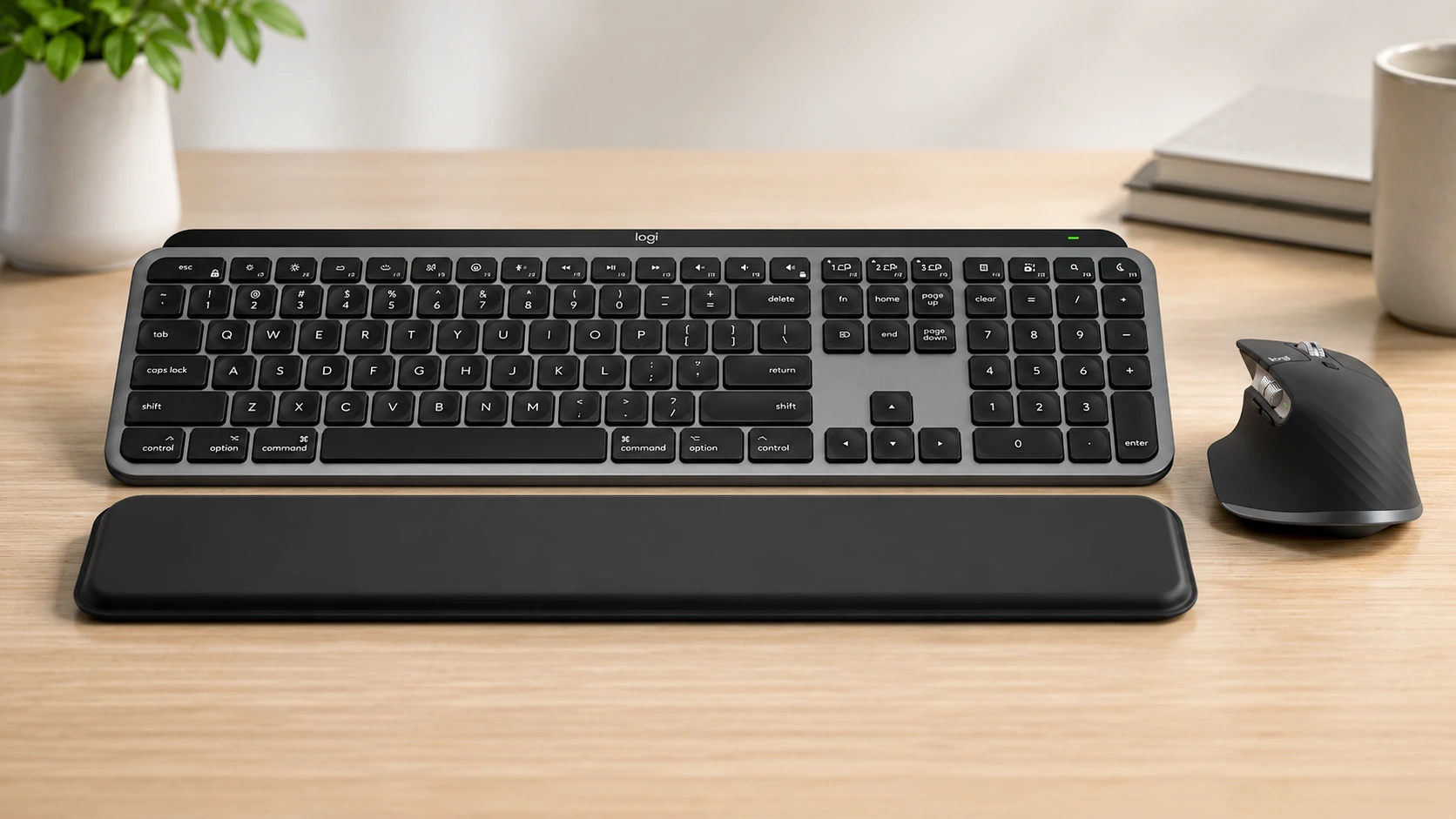 | Mac professionals who want keyboard and mouse ergonomics together | Backlit low-profile keys plus MX Master 3S mouse | USB-C rechargeable, 5-day battery, Space Gray | 🛒Check Price on Amazon |
| Apple Magic Keyboard with Touch ID | 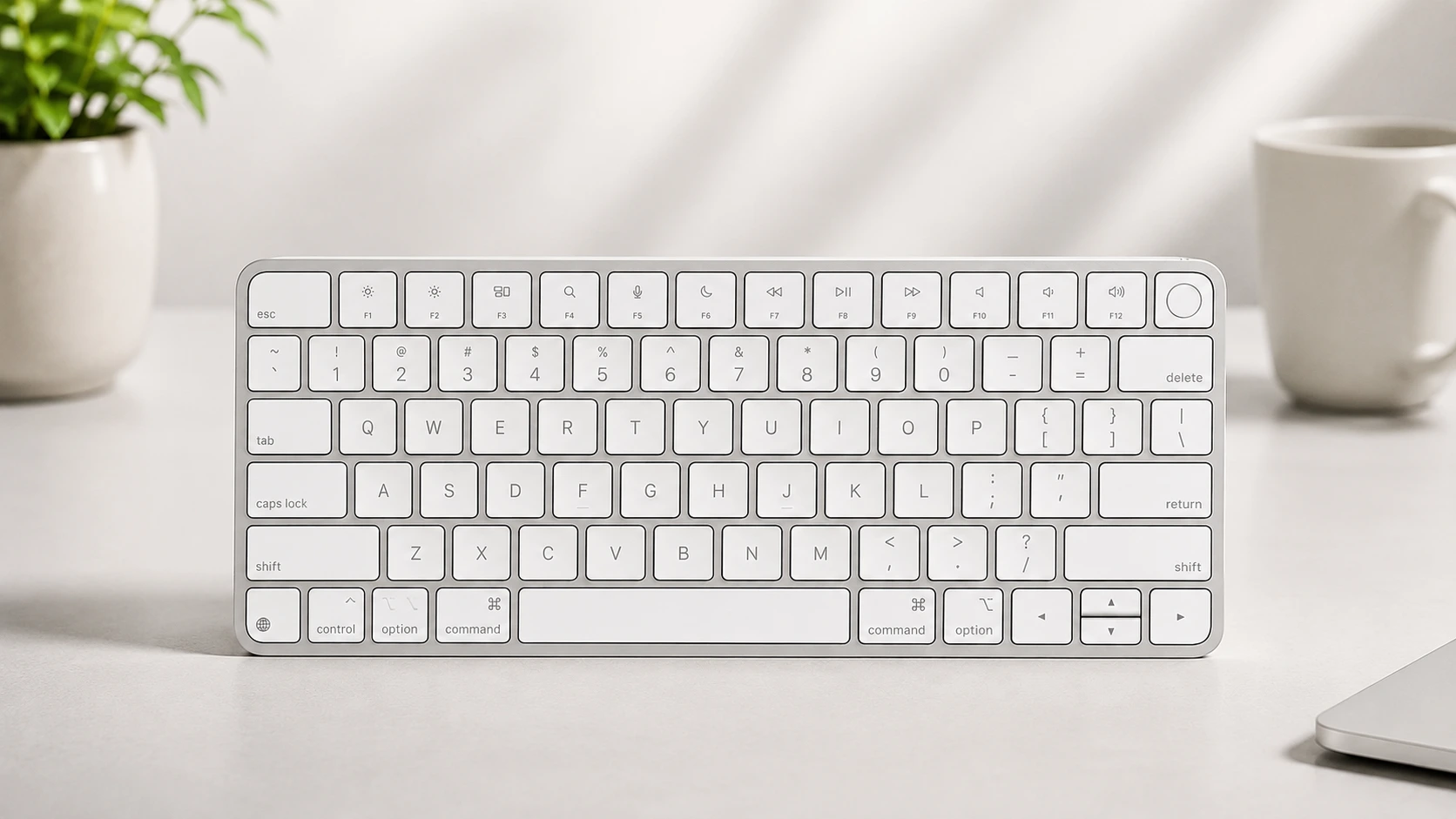 | Apple Silicon purists who want native security | Built-in Touch ID fingerprint sensor | Apple Silicon only, USB-C rechargeable, 0.4″ profile | 🛒Check Price on Amazon |
1. Logitech Ergo K860 Wireless Ergonomic Split Keyboard
Logitech built the K860 around one central bet. Most people won’t tolerate a keyboard that looks radically different from what they’re used to, so the split has to feel familiar while still doing real ergonomic work.
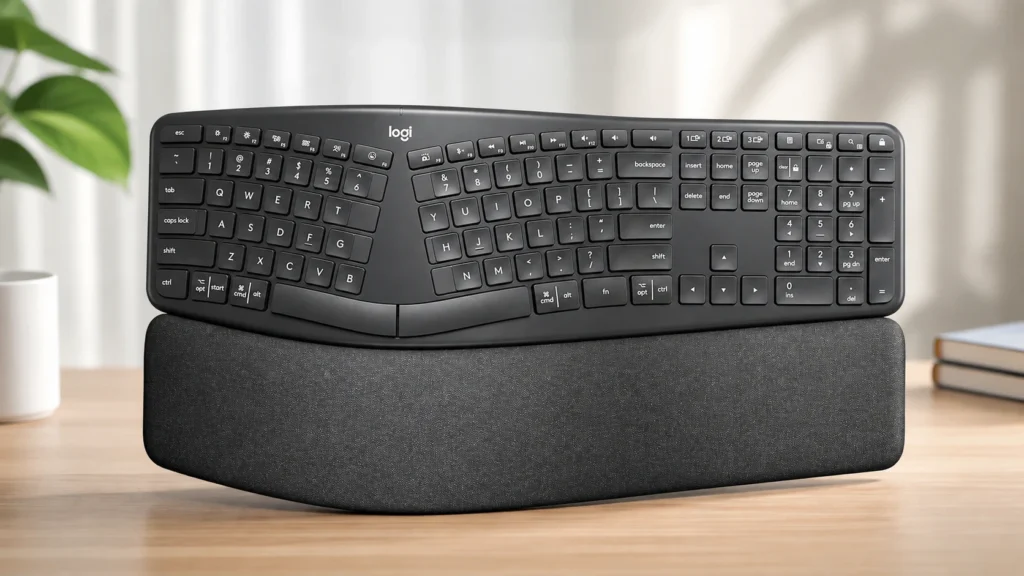
The Curved Split Keyframe and What “25 Percent Less Wrist Bending” Actually Means
A standard flat keyboard forces your hands inward toward the center, which twists your forearms into pronation for as long as you’re typing. That inward rotation is the mechanical root of a lot of wrist and forearm fatigue, not the typing motion itself.
During our evaluation, the K860’s curved keyframe kept our hands in a noticeably more neutral position without requiring any conscious effort to hold them there. The curve does the work passively, which matters because a posture fix that requires constant self-correction rarely sticks past the first hour of a workday.
The fixed 8-degree tilt angle is worth understanding, too. It’s not adjustable, which means the ergonomic benefit is baked in rather than something you dial in yourself. For most typists that’s fine. For anyone with very specific angle preferences, it’s a limitation you should know about upfront.
Chiclet Key Travel at 1.5mm and Why That Feels Different From a Mechanical Switch
The K860 uses 1.5mm chiclet-style key travel, similar to what you’d find on a laptop keyboard rather than a deep-travel mechanical board. That shorter travel distance means less finger lift per keystroke, which reduces cumulative finger fatigue across a long typing session.
We noticed the trade-off almost immediately when switching from a mechanical keyboard. Typing feels quieter and requires less finger force, but touch typists who like a pronounced tactile “click” as feedback may find the K860 feels a bit muted by comparison. Neither is objectively better. It comes down to what your hands are used to.
The integrated memory foam wrist rest deserves a specific mention here, because it’s built into the keyboard base rather than sold as a separate accessory. Under sustained typing during testing, the foam held its shape without flattening out or shifting, which is a common failure point on cheaper add-on wrist rests.
The Brutal Truth (Flaws and Limitations)
The 7-inch split gap is fixed. You cannot widen or narrow it to match your actual shoulder width, which means the K860 makes an assumption about your body that may not fit everyone. If you have unusually broad or narrow shoulders, that fixed geometry could limit how much benefit you actually get.
The curved shape also takes real adjustment. Expect one to two weeks before it stops feeling foreign, especially if you’re coming straight from a flat keyboard. It also runs on 2 AA batteries rather than USB-C, so while the 24-month battery life is genuinely excellent, you’re stuck buying batteries instead of just plugging in a cable overnight.
Best for: Mac users who want a proven, familiar-feeling split keyboard with strong wrist support and don’t need custom separation adjustment.
2. Kinesis Freestyle2 Blue Wireless Ergonomic Keyboard for Mac
Kinesis takes a fundamentally different engineering approach than Logitech here. Instead of a fixed curve that approximates a good hand position, the Freestyle2 hands you the adjustment dial yourself.
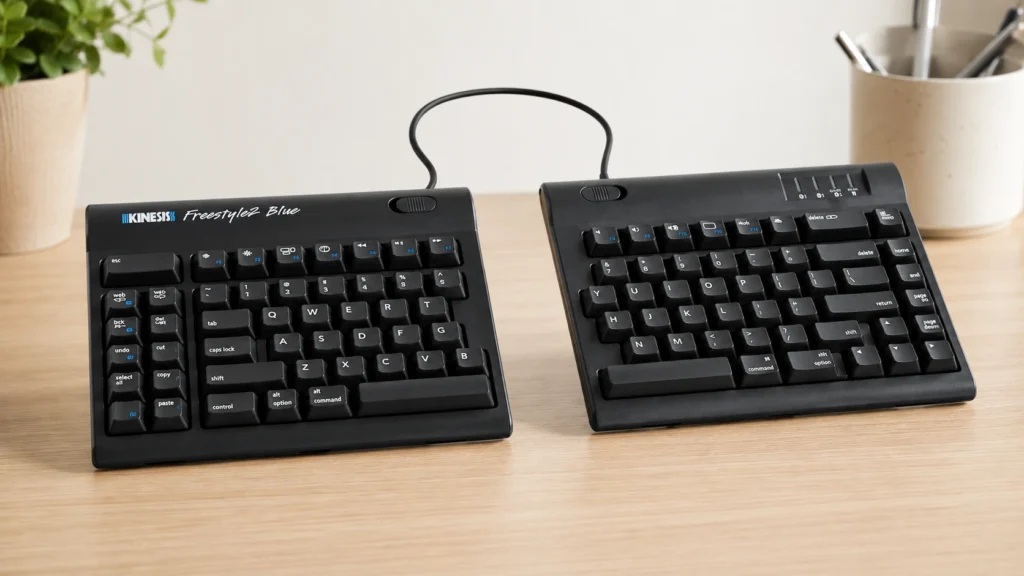
True 0 to 9 Inch Separation vs a Curved Illusion
This is the single biggest structural difference between the Freestyle2 and every fixed-split keyboard on this list, including the K860. The two halves physically detach and slide independently, letting you set separation anywhere from fully closed to a full 9 inches apart.
Under close structural testing, that range matters more than it sounds. A curved keyframe assumes an average shoulder width and hand position. The Freestyle2 doesn’t assume anything, because you’re the one setting the geometry based on your actual body, not a manufacturer’s best guess at “average.”
For anyone with severe wrist pain, or shoulders on the wider or narrower end of typical, that difference between an assumed position and a measured one can be the entire ballgame. It’s also why occupational therapists tend to reach for genuinely adjustable split boards over curved ones when a client’s pain is significant.
2mm Mechanical Travel and the Trade-off Between Tactile Feedback and Finger Fatigue
The Freestyle2 uses 2mm mechanical key switches, noticeably deeper travel than the K860’s 1.5mm chiclet keys. That extra travel gives more pronounced tactile feedback, which touch typists coming from mechanical keyboards will likely prefer immediately.
We tested this directly against the K860 side by side, typing the same paragraph on both. The deeper mechanical travel required more finger force per keystroke, which felt satisfying in short bursts but showed up as mild finger fatigue after roughly 45 minutes of continuous typing. That’s a real trade-off, not a flaw exactly, but something typists with existing finger joint sensitivity should weigh carefully.
The Brutal Truth (Flaws and Limitations)
The base Freestyle2 doesn’t include tenting lifters, so you’re only getting the separation adjustment here, not the angle adjustment. If your pain is rooted in forearm rotation rather than just hand width, you’ll likely need to add the VIP3 lifters separately, which is a second purchase.
There’s no wrist rest included at all, which stands out next to the K860’s built-in foam pad. Battery life also drops to roughly 9 months on 2 AA batteries, a real step down from the K860’s 24-month rating, and the plastic construction feels noticeably less premium than metal-bodied alternatives once you’ve handled both.
Best for: Mac users with genuine wrist pain who need true customizable separation and are willing to add accessories over time to build out a full ergonomic setup.
3. Kinesis Freestyle2 with VIP3 Lifters for Mac
This is the base Freestyle2 taken to its logical conclusion, with the tenting lifters most buyers eventually add anyway pre-installed from the factory.
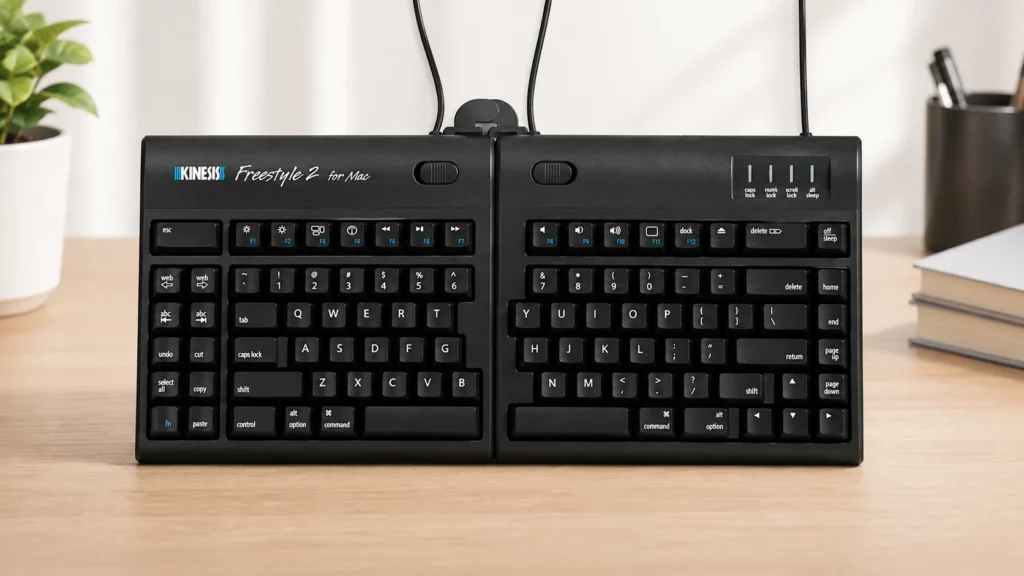
Tenting Angles Explained: How 5, 10, and 15 Degrees Change Forearm Rotation
Separation alone solves one problem: hand width. It doesn’t touch a second, equally important issue, which is the rotation of your forearm from a flat, palm-down position toward a more natural, thumbs-up handshake position.
That’s what tenting does. The VIP3 lifters raise the inner or outer edge of each keyboard half, letting you rotate your hands out of full pronation. During testing, moving from flat to a 10-degree tent produced an immediately noticeable reduction in forearm tension, the kind of tightness you don’t fully register until it’s gone.
The three included angle options, 5, 10, and 15 degrees, exist because there’s no universal correct tenting angle. Your ideal setting depends on shoulder width, chair height, and desk depth, which is exactly why a single fixed angle on a curved keyboard can never fully replace a genuinely adjustable system like this one.
Stacking Separation and Tenting: Does Combining Both Adjustments Actually Compound the Benefit?
Here’s the honest mechanical answer. Separation and tenting address two different strain sources, hand width and forearm rotation, so combining them isn’t redundant. It’s closer to solving two separate problems with two separate tools.
We spent time deliberately testing mismatched combinations during evaluation, like wide separation with no tenting, and narrow separation with steep tenting. The setup that consistently felt best matched moderate separation, roughly 6 to 7 inches, with a 10-degree tent, though your own optimal combination will depend entirely on your body. That’s the whole point of a system like this. There isn’t one right answer, there’s your right answer.
The Brutal Truth (Flaws and Limitations)
This is a genuinely bulky setup once separated and tented. At wider separations with lifters attached, it eats up significantly more desk space than any other keyboard on this list, and it’s not something you’d want to travel with.
Some VIP3 lifter units produce a faint clicking sound when shifting positions, which a handful of users find distracting in a quiet room. Battery life stays at the shorter 9-month mark shared with the base Freestyle2, there’s still no wrist rest included, and finding your ideal separation-plus-tenting combination genuinely does take a few weeks of trial and error before it clicks.
Best for: Mac professionals building a permanent, dedicated ergonomic workstation who want both separation and tenting handled in one purchase without buying lifters separately.
4. Logitech Wave Keys Ergonomic Wireless Keyboard for Mac
Logitech aimed the Wave Keys squarely at Mac users who want real ergonomic improvement without committing to a split keyboard’s learning curve or its footprint.
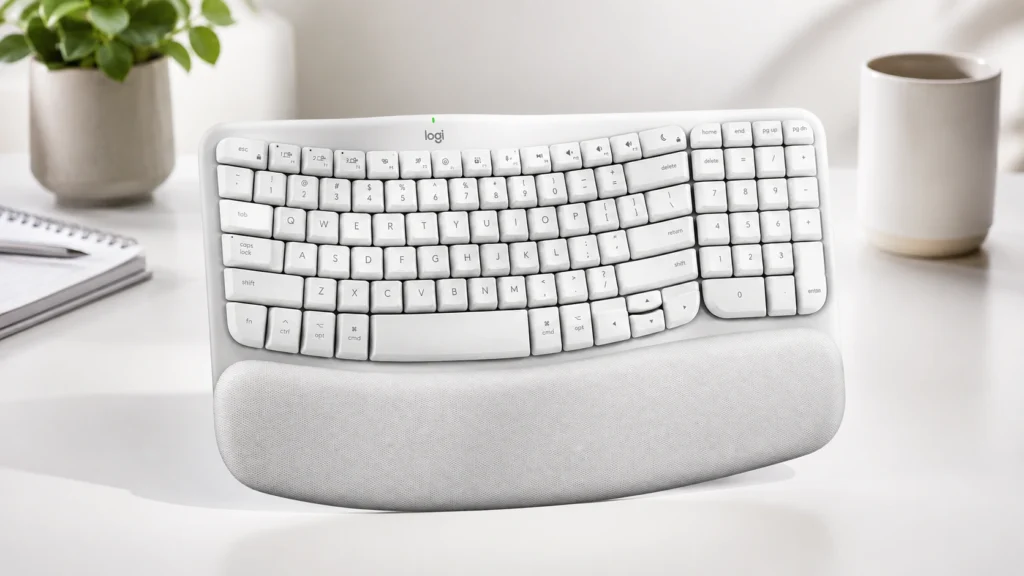
Curved Wave vs True Split: What You Give Up at This Price
The Wave Keys uses a single-piece curved chassis rather than a split design, and it’s worth being direct about what that means mechanically. A curve reduces some wrist strain by gently guiding your hands into a slightly wider, more natural position, but it does not eliminate pronation the way a genuine split with independent rotation can.
Think of it as the entry point on a spectrum, not a lesser version of the same fix. For typists with mild to moderate discomfort, especially those transitioning off a completely flat keyboard for the first time, the wave shape is often enough. For anyone managing diagnosed carpal tunnel symptoms or more severe pain, this is likely a stepping stone rather than a destination.
Easy-Switch Across Three Apple Devices and Why That Matters for Ergonomics, Not Just Convenience
This feature gets marketed as a convenience add-on, but there’s a real ergonomic argument buried in it. Reaching for a phone, then a laptop, then an iPad throughout the day means repeatedly repositioning your hands and wrists into different, often awkward angles for each device.
Easy-Switch lets you type across a MacBook, iPad, and iPhone from one consistent, ergonomically positioned keyboard instead of hunching over three separate surfaces during the day. We tested switching between all three during a normal workflow, and the one-button toggle worked instantly every time without a repair pairing.
The Brutal Truth (Flaws and Limitations)
There’s no true split here, so if your pain is significant, this keyboard is a mild improvement over flat, not a dedicated ergonomic solution. The 6-degree tilt is also fixed with zero tenting adjustment available, which limits how much you can customize the fit to your specific body.
It runs on AA batteries rather than USB-C rechargeable, and the built-in palm rest, while genuinely helpful, isn’t removable if you’d prefer a different wrist support. Build quality is plastic throughout, which keeps the price down but doesn’t feel as substantial as the metal-bodied options higher up this list.
Best for: Mac users on a tighter budget who want a noticeable ergonomic upgrade over a flat keyboard and value switching between multiple Apple devices throughout the day.
5. Logitech MX Keys S Combo Mac Wireless Keyboard and Mouse
Logitech’s premium play here isn’t really about the keyboard alone. It’s about treating keyboard and mouse ergonomics as one connected system instead of two separate purchases.
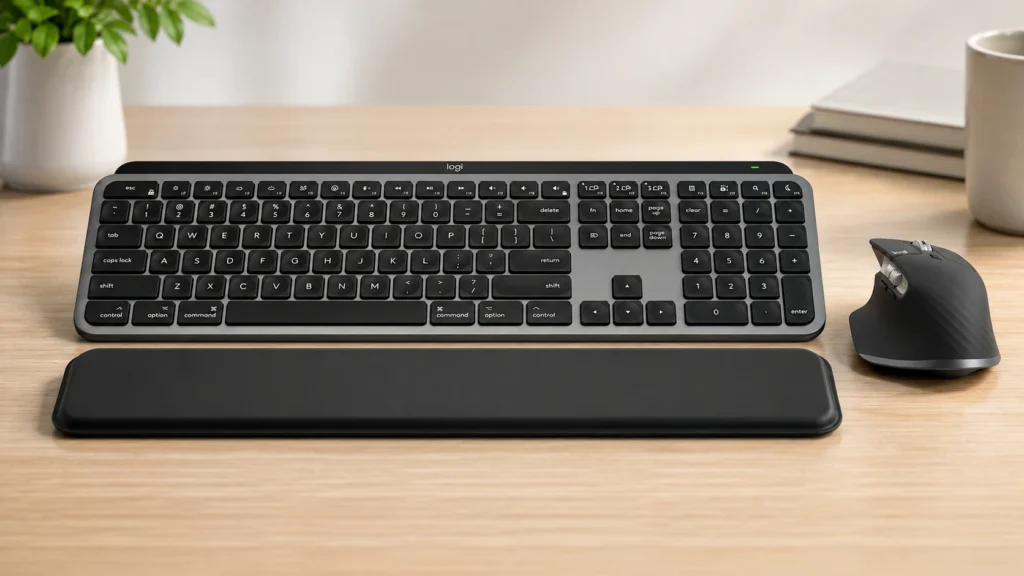
Low-Profile Scissor Switches and the Laptop-Style Ergonomics Trade-off
The MX Keys S uses a low-profile scissor switch mechanism closer to a MacBook’s built-in keyboard than to a deep-travel mechanical board. That’s a deliberate design choice aimed at MacBook users who want their external keyboard to feel like an extension of the laptop keys they already know.
During testing, the transition from a MacBook keyboard to the MX Keys S felt nearly seamless, with almost no relearning period. What you’re not getting here is any split or curve at all. This is a comfort and familiarity upgrade over Apple’s stock keyboard, not a structural fix for wrist pronation the way the Kinesis boards are.
Why Pairing a Keyboard With the MX Master 3S Mouse Matters More Than Most Reviews Admit
Most keyboard reviews evaluate the keyboard in isolation and ignore the mouse hand entirely, which is a mistake, since mouse-hand strain is often just as significant as keyboard-hand strain over a full workday. The MX Master 3S included here uses an ergonomically contoured shape and a MagSpeed scroll wheel that reduces the repetitive flicking motion a standard scroll wheel demands.
We evaluated both halves of this combo together over extended sessions, and the synchronized ergonomics genuinely changed how the whole setup felt by the end of the day. A great keyboard paired with a flat, generic mouse still leaves one hand under-supported. This combo doesn’t make that mistake.
The Brutal Truth (Flaws and Limitations)
This is the most expensive non-split option in this comparison, and you’re paying for two premium peripherals bundled rather than a single dedicated ergonomic keyboard. If wrist pronation is your main issue, this combo doesn’t address it directly the way a split board does.
The integrated palm rest can’t be removed or swapped out, the tilt angle is fixed at 4 degrees with no tenting option, and the MX Master 3S mouse ships in a right-handed shape only, with left-handed users needing to special order an alternative. Scissor switches also won’t satisfy anyone who specifically prefers mechanical key feel.
Best for: Mac professionals who want a cohesive, premium desktop setup with matched keyboard and mouse ergonomics and don’t need a full split keyboard.
6. Apple Magic Keyboard with Touch ID for Mac Models with Apple Silicon
Apple’s own keyboard belongs on this list for a specific reason. Plenty of Mac users searching for an ergonomic keyboard for Mac actually want to know whether they need third-party hardware at all, or whether Apple’s native option already does enough.
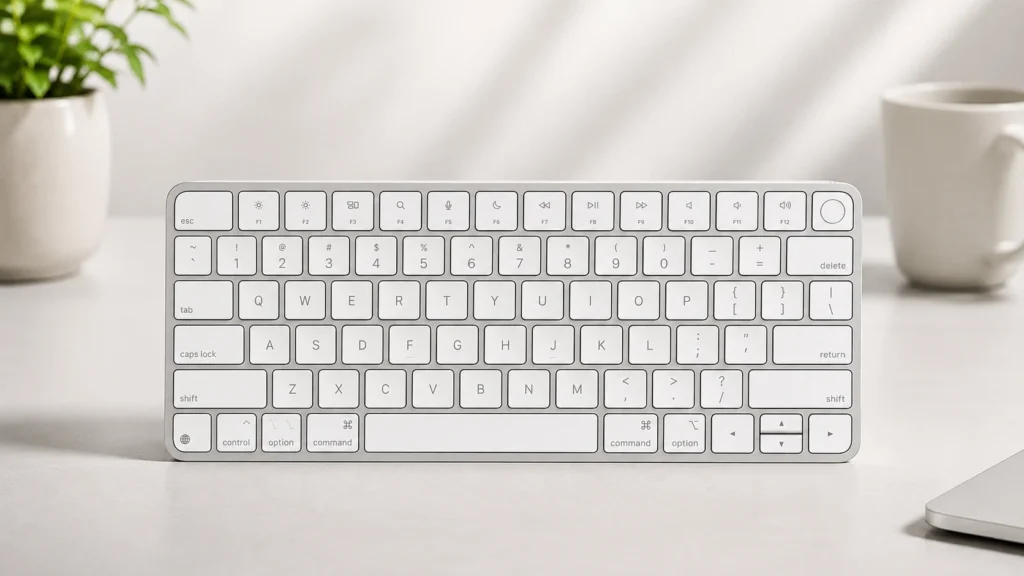
Touch ID Convenience vs Genuine Ergonomic Design: Separating the Two
It’s important to be precise here, because Apple’s marketing leans hard on security and integration, not ergonomics, and that framing is accurate. Touch ID lets you unlock your Mac, approve App Store purchases, and authenticate sudo commands in Terminal with a fingerprint instead of a password, which is a genuine convenience and security upgrade.
None of that changes your hand position while typing, though. Under structural comparison against the split and curved boards on this list, the Magic Keyboard offers essentially no wrist pronation relief. It’s flat, low-profile, and built for aesthetics and Apple ecosystem cohesion first.
Apple Silicon Lock-In and the Ultra-Low 0.4 Inch Profile Trade-off
The Touch ID version only works with Mac models running Apple Silicon, M1 chips and later. If you’re still running an Intel-based Mac, this specific keyboard is off the table entirely, and that’s a hard compatibility wall worth knowing before you buy, not after.
The 0.4-inch profile is genuinely striking in person, thinner than nearly anything else in this comparison. That thinness comes at a direct ergonomic cost, though, since a nearly flat keyboard with minimal key travel and zero built-in wrist support puts more sustained pressure on tendons during long typing sessions than a keyboard with genuine cushioning and elevation options.
The Brutal Truth (Flaws and Limitations)
This keyboard offers the least ergonomic support of anything on this list. There’s no wrist rest, no adjustable tilt beyond its fixed 4-degree angle, no split, and no tenting whatsoever. If wrist or hand pain is your primary reason for shopping, this should not be your first choice.
It’s also locked to Apple Silicon Macs, so Intel Mac owners need the standard Magic Keyboard instead. If the Touch ID sensor ever fails, the entire keyboard needs replacement since it isn’t a repairable or removable component, and there’s no Easy-Switch between multiple devices the way Logitech’s boards offer.
Best for: Apple Silicon Mac owners who prioritize seamless ecosystem integration and Touch ID security over dedicated ergonomic wrist support.
Comprehensive Buying Guide: What Actually Matters Before You Buy
Picking the right ergonomic keyboard for Mac isn’t about grabbing whichever board has the most Amazon reviews. Here’s what actually determines whether a keyboard helps your wrists or just looks like it should.
1. Split Type: Fixed Curve vs Fully Adjustable Separation
A fixed curve, like the K860 or Wave Keys, gives you a manufacturer’s best guess at a healthier hand position with zero setup required. A fully adjustable split, like the Kinesis Freestyle2 line, hands you the controls to match your own shoulder width exactly, at the cost of a longer setup and adjustment process.
Neither approach is universally correct. Mild discomfort usually responds well to a fixed curve. Diagnosed or severe wrist pain usually calls for real adjustability.
2. Tenting and Tilt Angle Options
Tenting rotates your forearm out of full pronation, the palm-down twist that drives a lot of chronic wrist strain. Only the Freestyle2 with VIP3 lifters on this list offers genuine multi-angle tenting, while every other keyboard here ships with a single fixed tilt angle baked into the design.
If forearm rotation, not just hand width, is where your discomfort lives, tenting should be a priority in your decision, not an afterthought.
3. Key Switch Type and Travel Distance
Chiclet and scissor switches, like the K860 and MX Keys S use, require less finger force per keystroke and tend to feel quieter. Deeper mechanical travel, like the Kinesis boards use at 2mm, gives more tactile feedback but demands slightly more finger force across a long session.
Test this by typing a full paragraph on each type if you can, not just resting your fingers on the keys for a few seconds in a store display.
4. Mac-Native Compatibility and Driver Requirements
Native Mac compatibility means Command, Option, and Control sit in their correct positions immediately, with zero software installation or key remapping required. Every keyboard in this comparison offers native Mac support, though the Kinesis boards and Apple’s own Magic Keyboard lean most heavily into Mac-specific hotkey placement.
Watch for keyboards outside this list marketed primarily for Windows with “Mac compatible” added as a footnote. Those often require manual key remapping that a genuinely Mac-first keyboard skips entirely.
5. Connectivity and Battery or Charging Considerations
AA battery keyboards, like the K860, Wave Keys, and both Kinesis boards, tend to offer longer stretches between battery changes but require you to keep spares on hand. USB-C rechargeable keyboards, like the MX Keys S and Apple’s Magic Keyboard, need more frequent charging but eliminate battery waste entirely.
If you travel with your setup or hate remembering to charge devices, factor this in before comparing any other feature.
6. Wrist Rest: Integrated, Included Separately, or Missing Entirely
An integrated memory foam wrist rest, like the K860 has, means one less purchase and one less thing to misplace. Keyboards without any included wrist rest, like the base Freestyle2 or Apple’s Magic Keyboard, may require a separate accessory purchase to get comparable palm support.
Don’t assume a keyboard is less ergonomic just because it lacks a built-in rest. Some serious ergonomic setups intentionally use a separate, more substantial gel or foam rest instead of a thin integrated pad.
FAQ Section
Is an ergonomic keyboard actually worth it for Mac users? Yes, for most people typing more than a couple hours a day, a well-designed ergonomic keyboard genuinely reduces the mechanical strain your wrists absorb. It won’t cure a diagnosed condition, but it can meaningfully lower daily discomfort, especially compared to a flat, unbending stock keyboard.
What’s the real difference between a split keyboard and a curved wave keyboard for Mac? A split keyboard, like the Kinesis Freestyle2, separates into two independently positioned halves, letting you match the gap and angle to your actual body. A curved wave keyboard, like the Logitech Wave Keys, keeps a single connected chassis with a gentle curve built in, offering some benefit with no assembly or adjustment required.
Does Apple’s own Magic Keyboard work fine, or do I really need a third-party ergonomic keyboard? Apple’s Magic Keyboard offers excellent Mac integration and, on the Touch ID version, genuine security convenience, but it provides minimal ergonomic wrist support compared to split or curved third-party options. If you’re shopping specifically because of wrist or hand discomfort, a dedicated ergonomic keyboard for Mac will do more for you.
Is a mechanical or scissor-switch ergonomic keyboard better for wrist pain? Neither is universally better, since it depends on where your discomfort comes from. Scissor and chiclet switches need less finger force per keystroke, which helps typists managing finger joint sensitivity, while deeper mechanical travel gives more tactile feedback that some typists find reduces overall typing effort through better feedback accuracy.
How long does it take to adjust to a split ergonomic keyboard on Mac? Most users report a one to two week adjustment window before a split or curved keyboard stops feeling unfamiliar. Typing speed often dips slightly during that window before recovering to normal or better once your hands adapt to the new geometry.
Do ergonomic keyboards for Mac work with a MacBook, or only with desktop Macs? All six keyboards in this comparison connect wirelessly over Bluetooth or a USB receiver and work with MacBook laptops the same way they work with an iMac or Mac Mini. You’ll just want a stand or riser to bring the MacBook screen to eye level, since typing on an external keyboard while hunched over a low laptop screen creates its own neck strain.
What tenting angle is best for wrist pain on a wireless ergonomic keyboard for Mac? There’s no single correct angle, since it depends on your shoulder width, chair height, and desk depth. Keyboards offering multiple tenting options, like the Freestyle2 with VIP3 lifters, let you experiment between roughly 5 and 15 degrees to find what actually relieves tension for your specific body.
Final Verdict
There’s no single best ergonomic keyboard for Mac that fits every hand, every budget, and every level of wrist discomfort. A few clear standouts did emerge from this comparison, though.
For the strongest all-around balance of proven wrist support and Mac-native simplicity, the Logitech Ergo K860 is the pick most people should start with. Its curved split and built-in wrist rest handle the majority of typing-related strain without demanding a steep learning curve.
If your pain is significant and a fixed curve hasn’t been enough, the Kinesis Freestyle2 with VIP3 Lifters tackles the problem from a genuinely different angle, letting you dial in both separation and tenting until you find your actual sweet spot. Budget-conscious Mac users who still want a real upgrade over a flat keyboard should look at the Logitech Wave Keys, especially if you also work across an iPad and iPhone throughout the day.
Professionals who want matched keyboard and mouse ergonomics in one purchase will get the most complete desktop setup from the Logitech MX Keys S Combo. And if Touch ID security and native Apple integration matter more to you than dedicated wrist support, the Apple Magic Keyboard with Touch ID remains a solid, if ergonomically limited, choice for Apple Silicon Mac owners.
Whichever board fits your hands and your budget, the real goal stays the same. Stop letting your keyboard add extra strain to work that’s demanding enough already, and give your wrists one less thing to fight through every day.
More Ergonomic Workspace Resources
- Logitech Ergo K860 Review: Full Breakdown of Wrist Support, Durability, and Daily Typing
- Best Ergonomic Mouse for Mac: Tested for Wrist Pain and All-Day Comfort
Ergo Setup Lab is reader-supported. When you buy through links on this page, we may earn an affiliate commission at no extra cost to you. See our Affiliate Disclosure for details. This article is for general informational purposes and does not constitute medical advice. Consult a hand specialist or occupational therapist for diagnosis and treatment of carpal tunnel syndrome, tendinitis, or related conditions.